
Mobile APM for Flutter applications
The Site24x7 Flutter plugin monitors your Flutter mobile app’s HTTP calls, crashes, screen load times, user taps, and custom data on Android and iOS. You can group this data by transactions, components, users, and sessions to find and fix performance problems.
Prerequisites
Before you start, make sure your project meets these minimum versions.
| Component | Minimum version |
|---|---|
| Flutter | 3.32.8 |
| Dart SDK | 3.8.1 |
| Android | minSdkVersion 21 (Android 5.0), compileSdkVersion 35 |
| iOS | 14.0 |
| Xcode | 16.1 |
| CocoaPods | 1.16.2 |
| Dio package (if used) | 5.3.0 |
| http package (if used) | 1.1.0 |
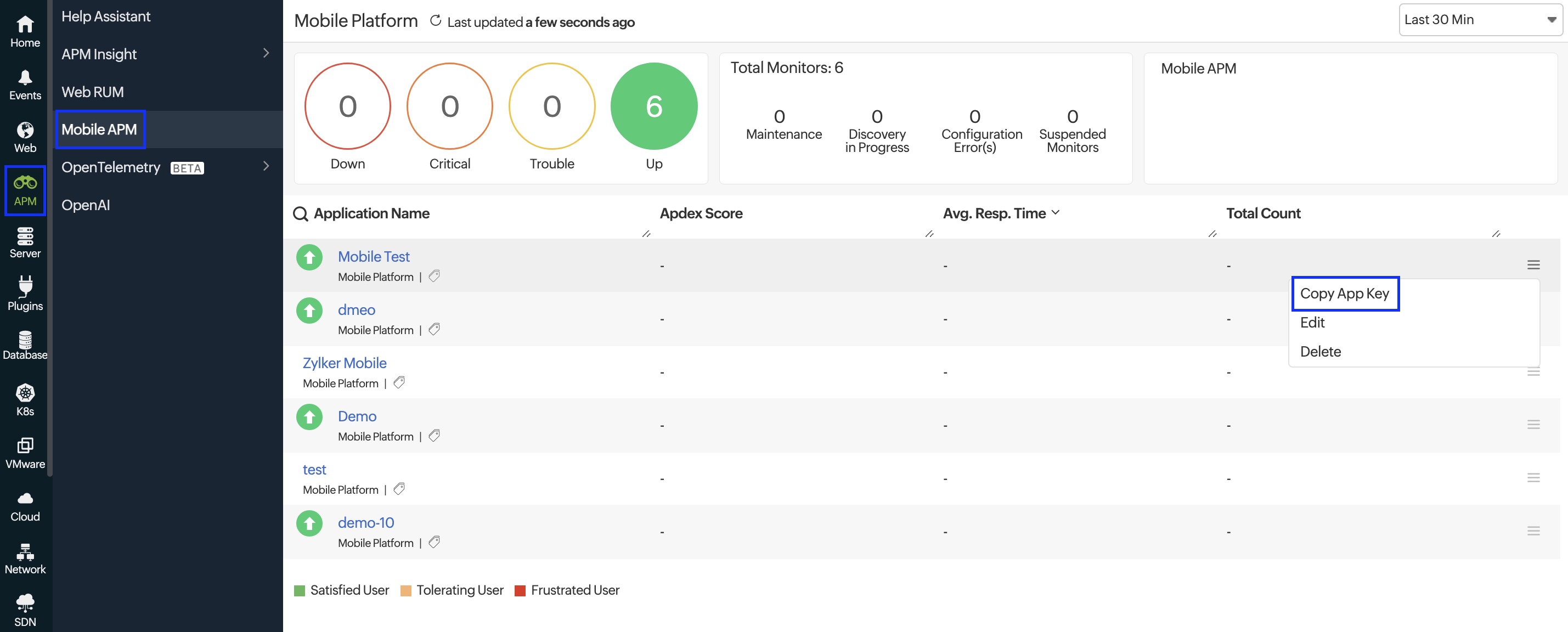
Go to APM > Mobile APM in the Site24x7 web client, click the hamburger icon next to your application’s name, and select Copy App Key.
Getting started
Follow the steps below to add apm_mobileapm_flutter_plugin to your Flutter app.
- To install the plugin, run the following command.
flutter pub add apm_mobileapm_flutter_plugin
- Open the
pubspec.yamlfile in your application folder and verify thatapm_mobileapm_flutter_pluginhas been added to the dependencies section, as shown below.
dependencies:
  apm_mobileapm_flutter_plugin: ^2.0.0
Installation steps for iOS
- Add the
Site24x7APMpod to thePodfilelocated inproject_directory/ios/.platform :ios, '14.0'
target 'Runner' do
# ...existing lines...
pod 'Site24x7APM'
end - Run the following commands from your project’s root folder.
cd ios
pod install
If pod install can’t find Site24x7APM, run pod repo update and then run pod install again.
Installation steps for Android
- Add the Zoho Maven URL to the project-level build file in the android folder of your application.
- If your project uses
android/build.gradle(Groovy):allprojects {
repositories {
google()
mavenCentral()
maven { url 'https://maven.zohodl.com' }
}
} - If your project uses
android/build.gradle.kts(Kotlin):allprojects {
repositories {
google()
mavenCentral()
maven { url = uri("https://maven.zohodl.com") }
}
}
- If your project uses
- Make sure
minSdkis 21 or higher inandroid/app/build.gradleorandroid/app/build.gradle.kts.android {
defaultConfig {
minSdk = 21
}
}
You don’t need to add the INTERNET permission. The plugin adds it to your application automatically.
Usage in Flutter applications
Import ApmMobileapmFlutterPlugin from the apm_mobileapm_flutter_plugin.dart file as follows:
import 'package:apm_mobileapm_flutter_plugin/apm_mobileapm_flutter_plugin.dart';
APIs to capture other parameters
Use these APIs to start the agent, track screens, network calls, and errors, and add your own data. Each section below shows the syntax.
- Initialize the agent
- Configure screen tracking
- Network monitoring
- Error monitoring
- Managing transactions and components
- User tracking
- Adding breadcrumbs
- Custom events
- Custom tags
- Click tracking
- Screen rendering metrics (TTID and TTFD)
- Setting the environment
- Manual flush
- Forced application crash
- Other APIs
Initialize the agent
Start the Site24x7 agent in your main() method, before runApp(). The code below also captures uncaught Flutter errors and async errors.
import 'dart:ui';

import 'package:flutter/material.dart';
import 'package:apm_mobileapm_flutter_plugin/apm_mobileapm_flutter_plugin.dart';

Future<void> main() async {
  WidgetsFlutterBinding.ensureInitialized();

  // Capture errors from the Flutter framework (non-async errors)
  FlutterError.onError =
      ApmMobileapmFlutterPlugin.instance.captureFlutterError;

  // Capture uncaught async errors
  PlatformDispatcher.instance.onError = (error, stack) {
    ApmMobileapmFlutterPlugin.instance.platformDispatcherErrorCallback(error, stack);
    return true;
  };

  // Start the agent
  await ApmMobileapmFlutterPlugin.instance.startMonitoring("appKey", 15);

  runApp(const MyApp());
}
Where,
appKey: The unique application key used to identify your app in Site24x7.
To get the app key, see Prerequisites.
uploadInterval: The time interval (in seconds) at which data is sent to Site24x7 servers.
We recommend an upload interval of 15 seconds. The value must be greater than 0.
- Make sure to call
WidgetsFlutterBinding.ensureInitialized();before assigning error callbacks in the main method. - Use
awaitwithstartMonitoring(). The other APIs on this page do nothing until the agent has started. - The
onErrorcallback must returntrueto tell Flutter that the error has been handled.captureFlutterErrorstill prints Flutter errors to your debug console.
Configure screen tracking
Add Site24x7NavigatorObserver() to your app once, and every screen your users open is tracked automatically. For each screen, the agent records the load time (from navigation to the first drawn frame) and adds a navigation breadcrumb that you'll see in crash reports. Dialogs, bottom sheets, and pop-up menus are not counted as screens.
Navigator example:
MaterialApp(
  navigatorObservers: [Site24x7NavigatorObserver()],
  routes: {
    '/': (context) => const HomeScreen(),
    '/cart': (context) => const CartScreen(),
  },
);
go_router example:
final router = GoRouter(
  observers: [Site24x7NavigatorObserver()],
  routes: [
    GoRoute(
      path: '/',
      builder: (context, state) => const HomeScreen(),
    ),
    GoRoute(
      path: '/cart',
      builder: (context, state) => const CartScreen(),
    ),
  ],
);

MaterialApp.router(routerConfig: router);
If you use ShellRoute in go_router, add Site24x7NavigatorObserver() to the observers of the shell route too. Otherwise, screens inside the shell aren’t tracked.
The observer also works with other routing packages built on Flutter’s Navigator, such as auto_route, beamer, fluro, routemaster, flutter_modular, and qlevar_router.
Name your routes:
The screen name shown in Site24x7 comes from the route name. Routes without a name are reported as Screen or not tracked at all. To name a route that you push directly, use RouteSettings:
Navigator.push(
  context,
  MaterialPageRoute(
    settings: const RouteSettings(name: 'ProductDetails'),
    builder: (context) => const ProductDetailsScreen(),
  ),
);
Readable screen names (optional):
To turn URL-style route paths into readable names, use Site24x7NavigatorObserver(deriveScreenNames: true). IDs in the path are grouped, so every product page appears as one screen.
| Route name | Screen name in Site24x7 |
|---|---|
/ |
Home |
/products |
Products |
/user/profile |
User/Profile |
/products/42 |
Products/:id |
Manual screen tracking (optional):
For content that changes without a navigation, such as tabs in a BottomNavigationBar or PageView, record the screen yourself with addScreen():
final start = DateTime.now();
// ... after the tab's content is shown:
final loadTime = DateTime.now().difference(start).inMilliseconds;
ApmMobileapmFlutterPlugin.instance.addScreen(
    "OrdersTab",
    loadTime.toDouble(),
    start.millisecondsSinceEpoch.toDouble(),
);
Where:
name: The screen name to show in Site24x7.loadTime: The time taken to load the screen, in milliseconds.startTime: When the screen started loading, in milliseconds since epoch.
Don't call addScreen() for screens that the observer already tracks, or they'll be counted twice.
Network monitoring
Network monitoring capabilities include support for HTTP and Dio packages, allowing for the capture of API calls made using these packages.
HTTP package:
import 'package:http/http.dart' as http;
import 'package:apm_mobileapm_flutter_plugin/apm_mobileapm_flutter_plugin.dart';

final client = Site24x7HttpClient();

// Or wrap an existing client:
// final client = Site24x7HttpClient(client: http.Client());

final http.Response response =
    await client.get(Uri.parse('https://api.example.com/orders'));
Dio package:
import 'package:dio/dio.dart';
import 'package:apm_mobileapm_flutter_plugin/apm_mobileapm_flutter_plugin.dart';

final dio = Dio(BaseOptions(baseUrl: 'https://api.example.com'));

// Add your own interceptors and settings first, then:
dio.enableSite24x7();

final response = await dio.get('/orders');
- Ensure that the required
httporDiopackage is installed before making API calls. - Call
enableSite24x7()after completing all other Dio configurations. If you modify the Dio object'shttpClientAdapterafterward, Site24x7 stops capturing its API calls.
Error monitoring
To capture caught exceptions:
try {
  await loadProfile();
} catch (error, stack) {
  ApmMobileapmFlutterPlugin.instance.captureException(
    error,
    stack,
    reason: 'Failed to load profile',
  );
}
Native crashes:
To also capture crashes in native Android (Java or Kotlin) and iOS (Swift or Objective-C) code, call this after startMonitoring():
await ApmMobileapmFlutterPlugin.instance.enableErrorReporting();
Managing transactions and components
A transaction groups the operations of one user flow. Inside a transaction, you can start and stop one or more components.
ApmMobileapmFlutterPlugin.instance.startTransaction("listing_blogs");

//Grouping various operations using components.
ApmMobileapmFlutterPlugin.instance.startComponent("listing_blogs", "http_request");
//your code/logic
ApmMobileapmFlutterPlugin.instance.stopComponent("listing_blogs", "http_request");

ApmMobileapmFlutterPlugin.instance.startComponent("listing_blogs", "view_data_onto_screen");
//your code/logic
ApmMobileapmFlutterPlugin.instance.stopComponent("listing_blogs", "view_data_onto_screen");

ApmMobileapmFlutterPlugin.instance.stopTransaction("listing_blogs");
Stop all components before you stop their transaction.
User tracking
To track a specific user, set a unique user ID, for example right after the user logs in. If you don’t set one, Site24x7 generates a random GUID and uses it as the user ID.
ApmMobileapmFlutterPlugin.instance.setUserId("user@example.com");
Adding breadcrumbs
Breadcrumbs show the steps a user took before a crash. Navigation breadcrumbs are added automatically by Site24x7NavigatorObserver. To add your own breadcrumb, use:
ApmMobileapmFlutterPlugin.instance.addBreadcrumb(event, message);

// Example:
ApmMobileapmFlutterPlugin.instance.addBreadcrumb("Info", "download completed");
Custom events
Record actions that matter to you, with optional details.
// Any custom event
await ApmMobileapmFlutterPlugin.instance.recordCustomEvent(
  'video_played',
  attributes: {'category': 'tutorial'},
  kpis: {'duration_sec': 42},
);

// Business events, such as purchases or sign-ups
await ApmMobileapmFlutterPlugin.instance.recordBusinessEvent(
  'purchase_completed',
  attributes: {'plan': 'Premium', 'currency': 'USD'},
  kpis: {'amount': 29.99},
);

// Error events, counted by error type
await ApmMobileapmFlutterPlugin.instance.recordErrorEvent('payment_failed');
Where:
attributes(optional): Text details about the event, as key-value pairs.kpis(optional): Numeric values for the event, such as an amount or a duration.
Custom tags
Tags are key-value pairs added to the current session. Use them to filter your performance reports, for example by plan or region. You can add up to 100 tags per session.
// Add or update tags
await ApmMobileapmFlutterPlugin.instance.setTags({'plan': 'premium', 'region': 'US'});

// Read tags
final plan = await ApmMobileapmFlutterPlugin.instance.getTag('plan');
final allTags = await ApmMobileapmFlutterPlugin.instance.getAllTags();

// Remove tags
await ApmMobileapmFlutterPlugin.instance.removeTag('plan');
await ApmMobileapmFlutterPlugin.instance.clearTags();
Click tracking
Automatic click tracking. Wrap your app once, and taps on buttons and other interactive widgets are recorded automatically.
runApp(
  ApmMobileapmFlutterPlugin.instance.enableAutomaticClickTracking(
    child: const MyApp(),
  ),
);
When enabling automatic click tracking, replace the existing runApp(const MyApp()); call with the runApp() implementation shown above. Do not call runApp() twice.
Each tap is named after the widget type and its text, for example FilledButton_Add_To_Cart. To give a widget a name of your choice, add a key that starts with s247_:
ElevatedButton(
  key: const ValueKey('s247_checkout_pay'),
  onPressed: pay,
  child: const Text('Pay'),
);
Manual click tracking. To record a click yourself, use:
ApmMobileapmFlutterPlugin.instance.recordClickEvent('checkout_pay_button');
Actions done with the keyboard, such as pressing Enter to submit, aren't captured automatically. Use recordClickEvent() for them.
If you build your app with --obfuscate, widget type names are hidden. Use s247_ keys so that taps keep readable names.
Screen rendering metrics (TTID and TTFD)
The agent can measure two rendering times for each screen tracked by Site24x7NavigatorObserver:
- Time to Initial Display (TTID): The time from navigation until the screen's first frame is drawn. It's recorded automatically.
- Time to Full Display (TTFD): The time until the screen's content, such as data and images, has fully loaded.
On iOS, turn on these metrics once, after startMonitoring(). On Android, they're on by default, and the call is safe to keep for both platforms.
await ApmMobileapmFlutterPlugin.instance.enableScreenRenderingMetrics();
To record TTFD, call reportFullyDisplayed() when the screen's content has loaded:
@override
void initState() {
  super.initState();
  _loadProducts().then((_) {
    if (mounted) ApmMobileapmFlutterPlugin.instance.reportFullyDisplayed();
  });
}
If you don't call reportFullyDisplayed() within 30 seconds, the agent records TTFD at 30 seconds so the metric isn't empty. To change this limit, use Site24x7NavigatorObserver(ttfdDeadline: const Duration(seconds: 10)). Set it to Duration.zero to turn it off.
Setting the environment
To keep data from your development, staging, and production builds apart, set the environment after startMonitoring():
await ApmMobileapmFlutterPlugin.instance.setEnvironment('production');
Manual flush
You can use the API provided below to promptly send data to the Site24x7 servers instead of waiting for the next upload interval.
ApmMobileapmFlutterPlugin.instance.flush();
Forced application crash
You can force your application to crash and display an error message: This is a site24x7 crash.
ApmMobileapmFlutterPlugin.instance.crashApplication();
Other APIs
These APIs cover less common needs.
| API | What it does | Platform |
|---|---|---|
startMonitoringWithEndPoint(appKey, uploadInterval, endPoint) |
Starts the agent and sends data to the endpoint you specify. | Android, iOS |
addHttpCall(url, requestMethod, startTime, loadTime, statusCode) |
Records an HTTP call made with a library other than http or Dio. |
Android, iOS |
startScreenTracking(screenName),captureTTID(screenName, startTime),captureTTFD(screenName, startTime) |
Records TTID and TTFD yourself, for screens the observer doesn't track. startTime is the value returned by startScreenTracking(). |
Android, iOS |
appendWebViewSessionParams(url) |
Adds Site24x7 session details to a URL before you open it in a WebView, so the web session links to the app session. | Android, iOS |
getUserSessionId(),getUserGuid() |
Returns the current session ID and user GUID. | Android, iOS |
enableTouchEventTracking() |
Tracks taps on native Android and iOS views. For Flutter widgets, use Click tracking. | Android, iOS |
setSessionFromWebUri(uri) |
Links the app session to a web session from a deep link. | Android only |
Upgrading from site24x7_flutter_plugin
Version 2.0.0 is backward compatible with site24x7_flutter_plugin 1.0.0 and apm_mobileapm_flutter_plugin 1.1.0. The class name and all existing APIs stay the same, so your monitoring code keeps working after a few setup changes. Upgrading also moves your app to the data format that current Site24x7 servers expect.
- In
pubspec.yaml, removesite24x7_flutter_pluginand add the new package. If you already useapm_mobileapm_flutter_plugin, change the version to^2.0.0.dependencies:
apm_mobileapm_flutter_plugin: ^2.0.0 - Update every import line.
// Old (1.0.0)
import 'package:site24x7_flutter_plugin/site24x7_flutter_plugin.dart';

// Old (1.1.0)
import 'package:apm_mobileapm_flutter_plugin/site24x7_flutter_plugin.dart';

// New (2.0.0)
import 'package:apm_mobileapm_flutter_plugin/apm_mobileapm_flutter_plugin.dart'; - Set the iOS platform to 14.0 and Android
minSdkto 21, as described in the installation steps. - If you're upgrading from 1.0.0 and call
addScreen(), passloadTimeandstartTimeas double values, for exampleloadTime.toDouble(). - Add
awaitbeforestartMonitoring(), so that API calls made right after it aren't missed. - Run
flutter pub get, then runpod installin theiosfolder. Ifpod installreports a version conflict forSite24x7APM, runpod update Site24x7APM.
All other APIs work as before.
Release notes
Version 2.0.0
06 October 2026
Enhancements:
- Support for automatic screen tracking, including load time, with
Site24x7NavigatorObserver. Works withNavigator,go_router, and other routing packages. - Support for readable screen names using
deriveScreenNames. - Support for screen rendering metrics: Time to Initial Display (TTID) and Time to Full Display (TTFD).
- Support for custom events, business events, and error events.
- Support for custom tags.
- Support for automatic and manual click tracking.
- Support for capturing crashes in native Android and iOS code.
- Support for setting the environment.
- Support for linking WebView and deep-link web sessions to app sessions.
- Support for server time (time to first byte) and download time for HTTP calls made with Dio.
Bug fixes:
- Fixed an Android crash that occurred when the app resumed right after a permission dialog was closed.
- On iOS, clicks, HTTP calls, and errors are now reported under the correct Flutter screen.
- Updated the data format to match current Site24x7 servers.
Requirements: Flutter 3.32.8, Dart 3.8.1, Android minSdkVersion 21, and iOS 14.0 or later.
Version 1.1.0
06 May 2026
- Renamed the package from
site24x7_flutter_plugintoapm_mobileapm_flutter_plugin. - HTTP call URLs are now recorded without query parameters and are shortened to 200 characters.
- Android
minSdkVersionraised to 21.
Version 1.0.0
05 February 2024
Enhancements:
- Support for tracking HTTP calls with the request method, response time, throughput, status codes, platform, and screens.
- Support for tracking screens based on the response time, throughput, and count.
- Support for automatic tracking of navigations.
- Support for manually tracking views.
- Enabled user sessions tracking with a session timeout of 15 minutes.
- Support for manually adding user IDs.
- Support for tracking async and non-async crashes using agent-provided callbacks.
- Support for manually adding breadcrumbs.
- Support for packages such as HTTP and Dio.