
Install Java agent in ColdFusion
Note
Refer to this help page for the previous steps.
- Download the apminsight-javaagent.zip file from your account and extract the zip file to a new directory
- Open the apminsight.conf file in any text editor, enter your license.key (which can be obtained from the Site24x7 APM Insight page), configure the application.name and agent.server.port values as required, and save the file. Refer here to fine-tune the agent settings.
NoteIf multiple Java applications or instances are running on the same host, configure application-specific properties, such as application.name and agent.server.port, as JVM system properties instead of configuring them in the apminsight.conf file. For more information, refer to this KB article.
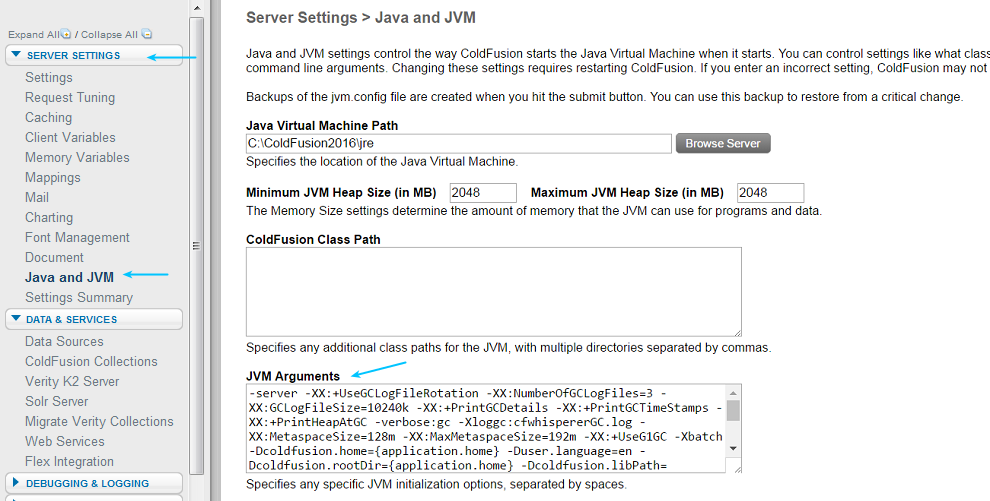
- Goto the ColdFusion admin console, on the left menu, select server settings > Java and JVM
- In the textbox for JVM Arguments, add the argument -javaagent:<agent_directory_full_path>/apminsight-javaagent.jar
- Save the configuration and restart the server