
Ask Zia
Ask Zia is an AI-powered chatbot that provides data-driven insights through natural language prompts. It simplifies complex analysis, detects trends, and generates smart visualizations, enabling users to make informed decisions quickly and effortlessly. With Ask Zia, users can access key metrics, filter data, and gain deeper business insights without needing complex queries or manual analysis.
Use cases
The following examples illustrate sample user prompts and Zia responses for common monitoring and troubleshooting scenarios.
- Peak outage details and analysis
A system admin wants to identify which service groups experienced the most outages this week and understand their primary causes.
User prompt: Show me the groups with the highest outages and their primary causes.
Ask Zia: The top outage contributors this week are:
-
- Payment Services: 3h 42m (Database connection timeout).
- API Gateway: 2h 15m (High memory utilization).
- Customer Portal: 1h 58m (SSL certificate expiration).
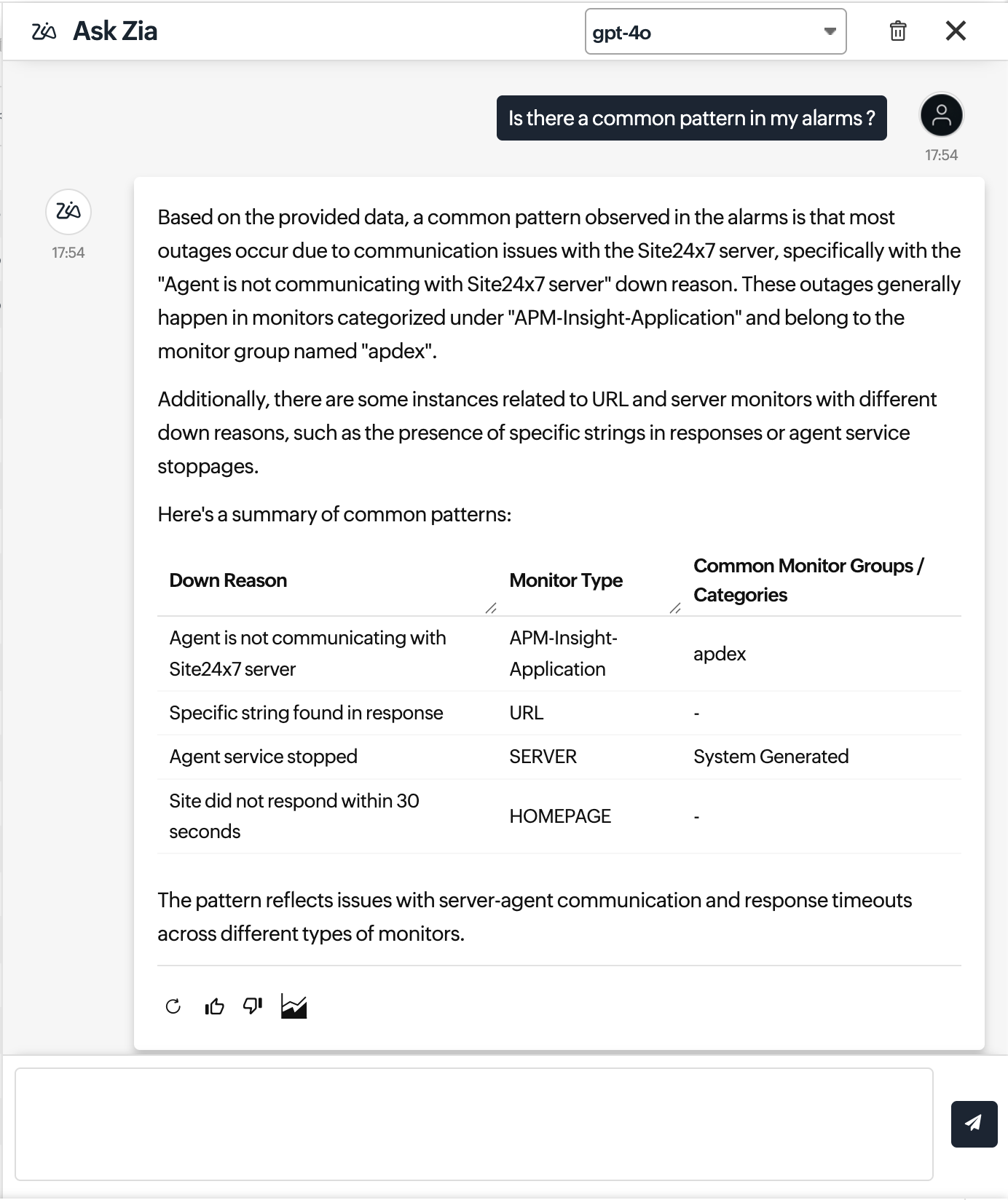
- Response time spikes and identifying patterns
During a weekend response time spike, an operations team wants to analyze to uncover recurring traffic or infrastructure patterns.
User prompt: When did response times peak over the weekend? Is there a common pattern?
Ask Zia: Response times peaked between Saturday 8pm–11pm IST across multiple locations. The spike correlates with increased traffic and elevated CPU usage on API servers.
Recommendation: Enable scaling or configure anomaly detection for peak windows.
- Availability summary report and key insights
A CIO requests a monthly availability and SLA performance summary with key impact insights and remediation highlights.
User prompt: Generate a CIO report for this month.
Ask Zia:
-
- Overall availability: 99.21%
- SLA breaches: 4 monitors.
- Most impacted service: Inventory API (2h 47m downtime).
- Key contributors include database latency and memory spikes. Suggested remediation steps have been highlighted for impacted services.
- Missed alerts diagnosis
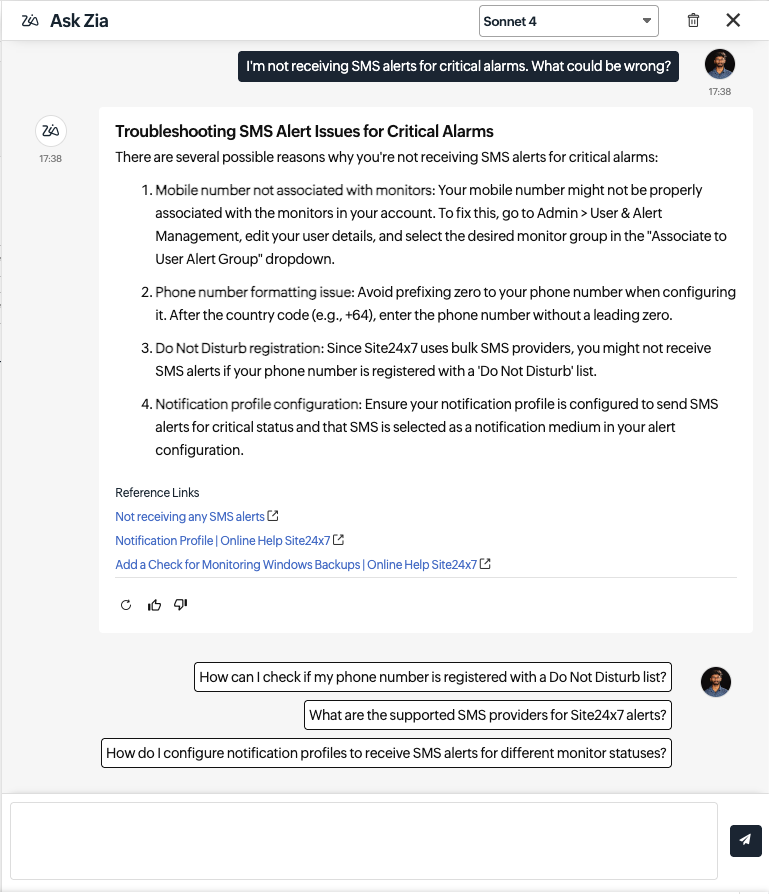
A technician wants to investigate why critical SMS alerts are not being delivered during high-severity incidents.
User prompt: I’m not receiving SMS alerts for critical alarms. What could be wrong?
Ask Zia: Common reasons for missed alerts include:
-
- SMS credits exhausted.
- SMS contact not linked to the monitor’s notification profile.
- Phone number not verified.
- Severity level not configured for SMS alerts.
Related KB article: Reasons for not receiving SMS alerts
Prerequisites to utilize Ask Zia
- Add the Zia integration to your account to enable the Ask Zia service.
- Click the model drop-down menu to select the desired LLM. For example, if you have configured the Microsoft Azure OpenAI integration, the drop-down menu will list the models offered by Azure.
How to access Ask Zia
You can access Ask Zia from either of the following options:
Ask Zia interface
You can interact with Zia across all Site24x7 features from a single place using the Ask Zia interface. You can ask about help documentation, troubleshooting tips, or request summaries of alarms, outages, reports, and more. To access the Ask Zia interface:
- Log in to your account.
- In the left navigation menu, click Ask Zia.
On the Ask Zia interface, you can:
Start a conversation
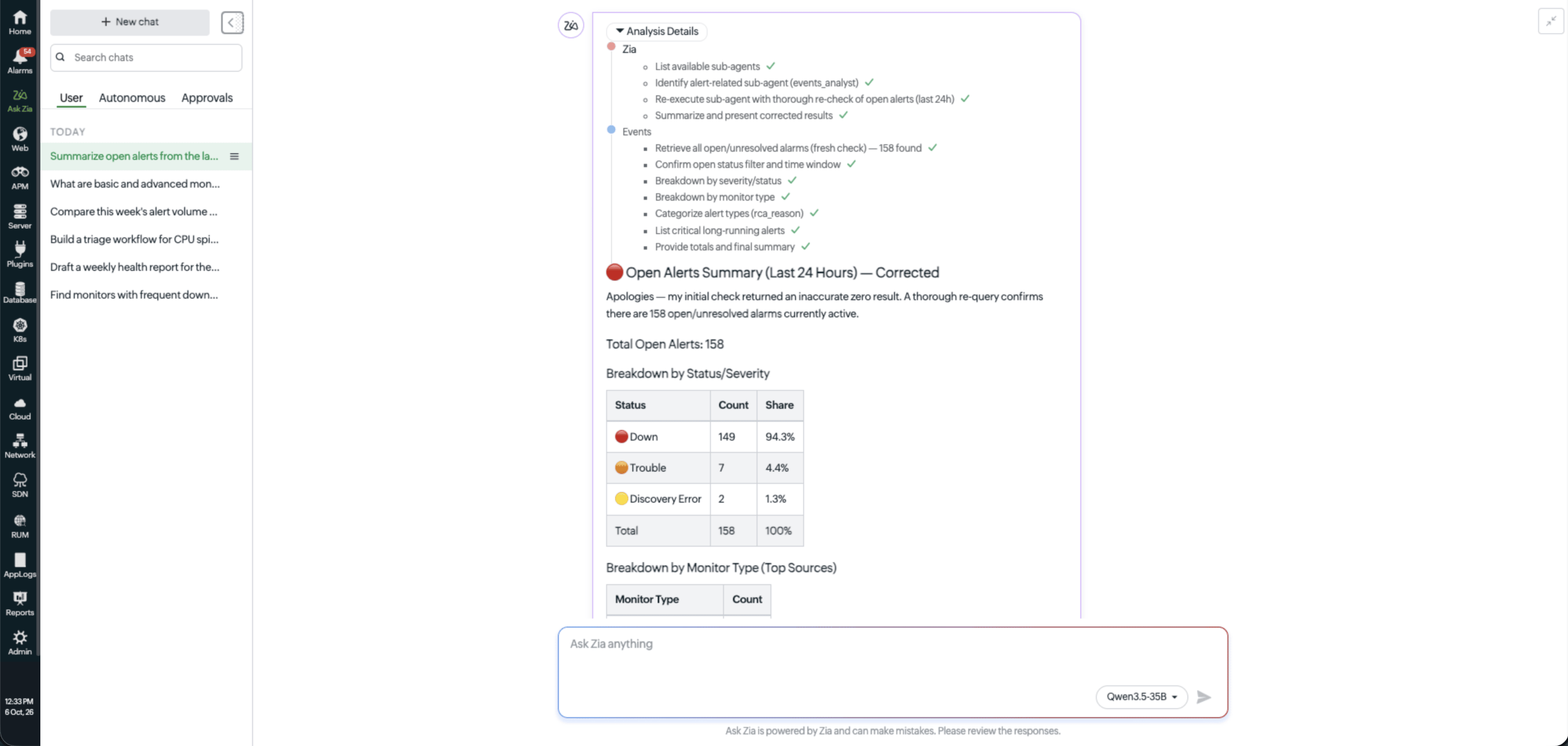
Type your question in the prompt space, or select one of the suggested prompts to get started quickly. For example, entering Summarize open alerts from the last 24 hours displays an overview of active issues without manually opening the Alarms page.
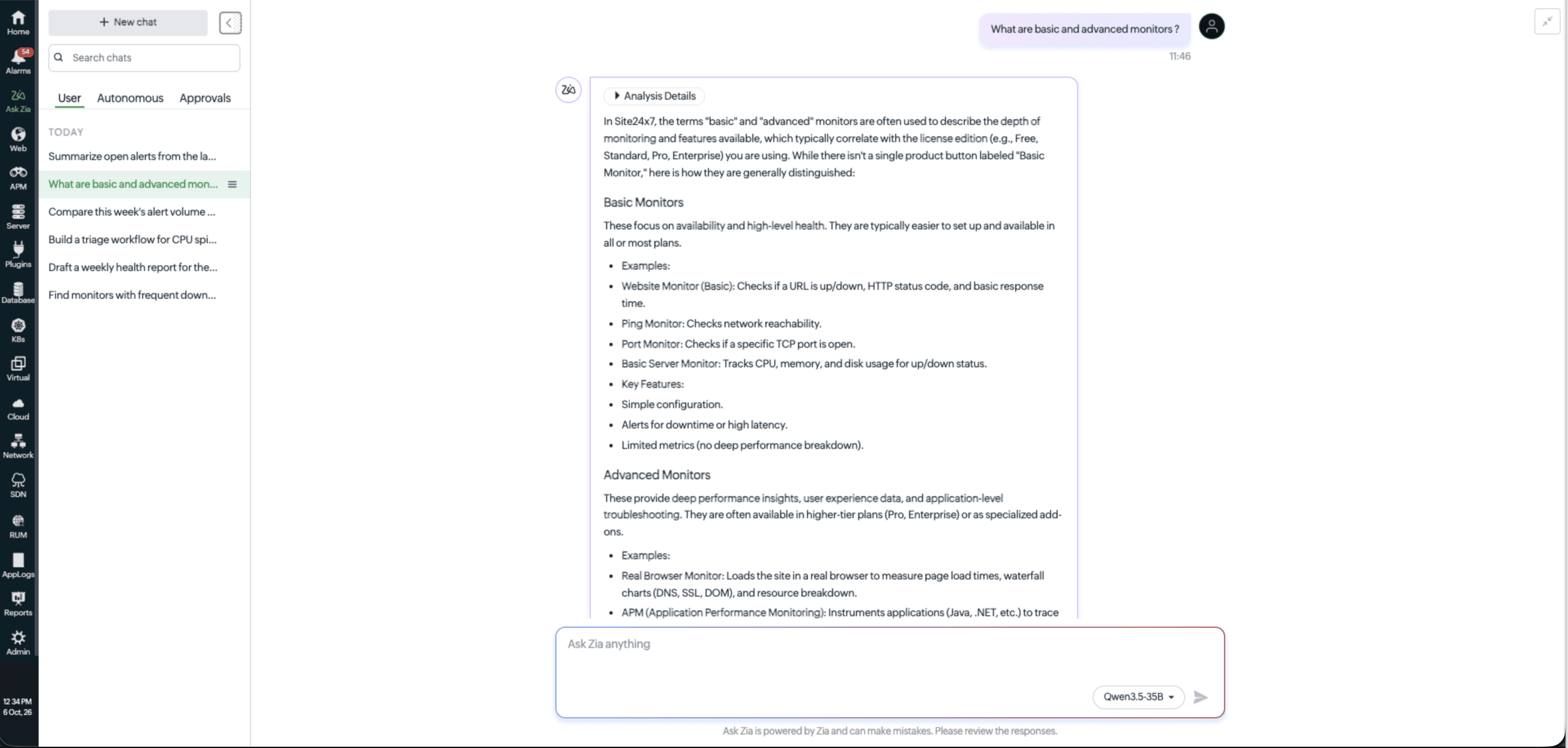
Review past conversations
The User tab lists every conversation you've had with Zia, so you can revisit an earlier answer instead of asking the same question twice. For example, if you asked Zia to investigate a CPU spike last week, you can reopen that conversation from Chats to compare it against today's numbers.
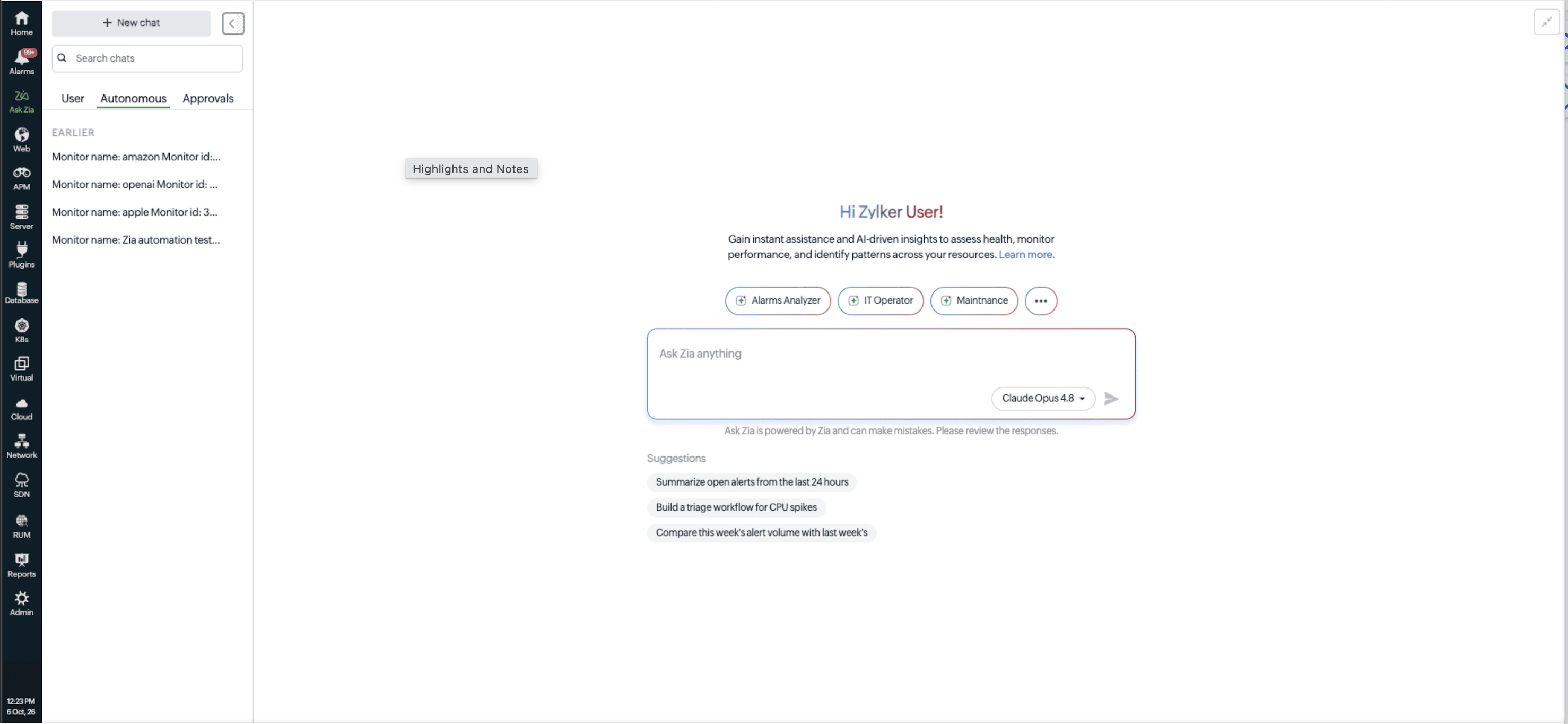
Track autonomous operations
The Autonomous tab shows actions Zia carried out on its own, triggered by your existing alerts or IT automation workflows rather than a chat prompt. For example, if a workflow is set up to have Zia investigate a monitor the moment it goes down, that investigation appears here automatically, even though no one asked for it directly.
Review actions with a human in the loop
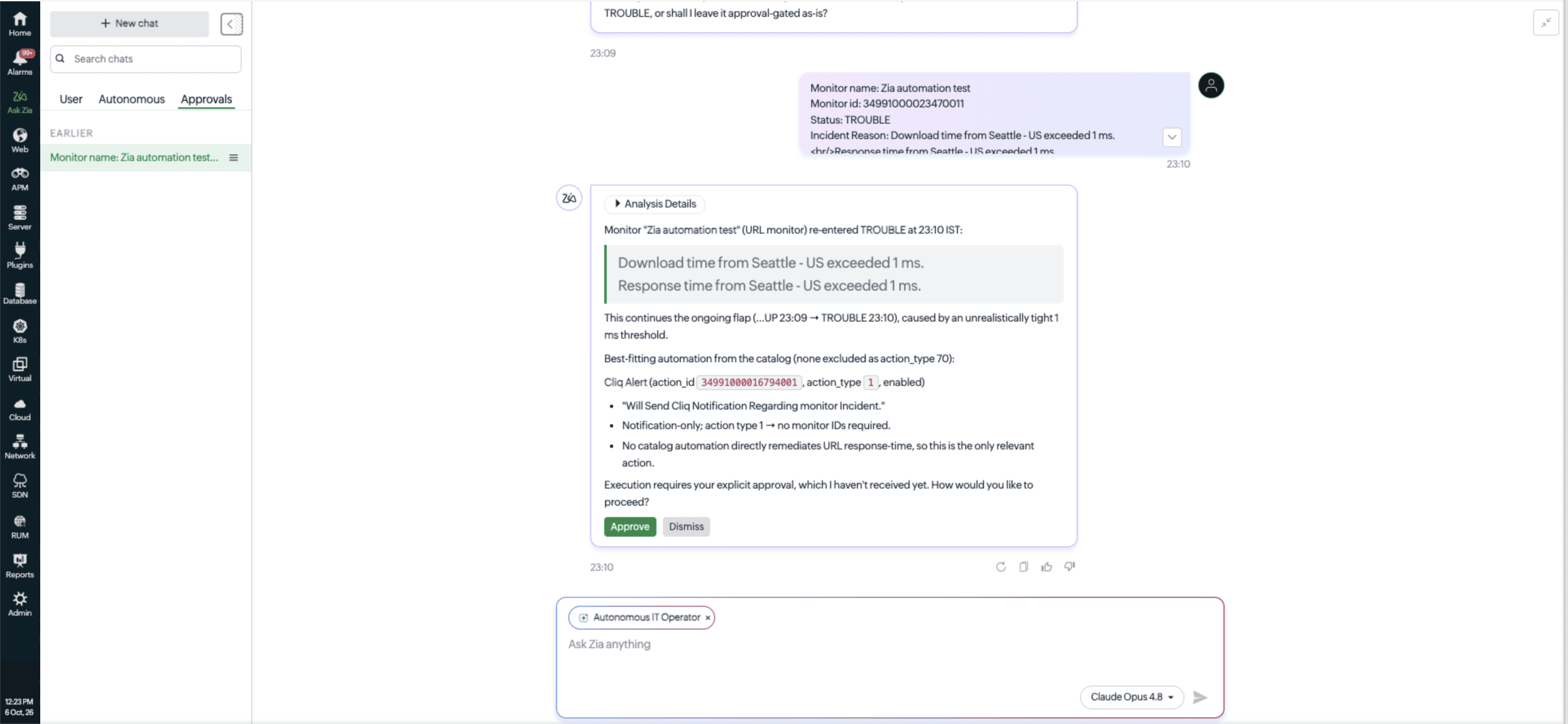
The Approvals tab lists actions Zia has suggested that need your sign-off before they run, along with a record of what's already been approved or rejected. For example, if Zia recommends restarting a service after repeated failures, that suggestion waits here until you approve it, so nothing runs on your infrastructure without your say-so.
Trace AI decisions with explainable AI
Analysis Details shows the steps Zia took, including the data it pulled and the checks it ran, to arrive at a given response. For example, if Zia links a monitor's downtime to a network issue, you can open Analysis Details to see exactly which checks led to that conclusion rather than taking the answer at face value.
Ask Zia icon
You can use Zia icon  to analyze, get suggestions, or summarize information from multiple pages like:
Analyze alarms
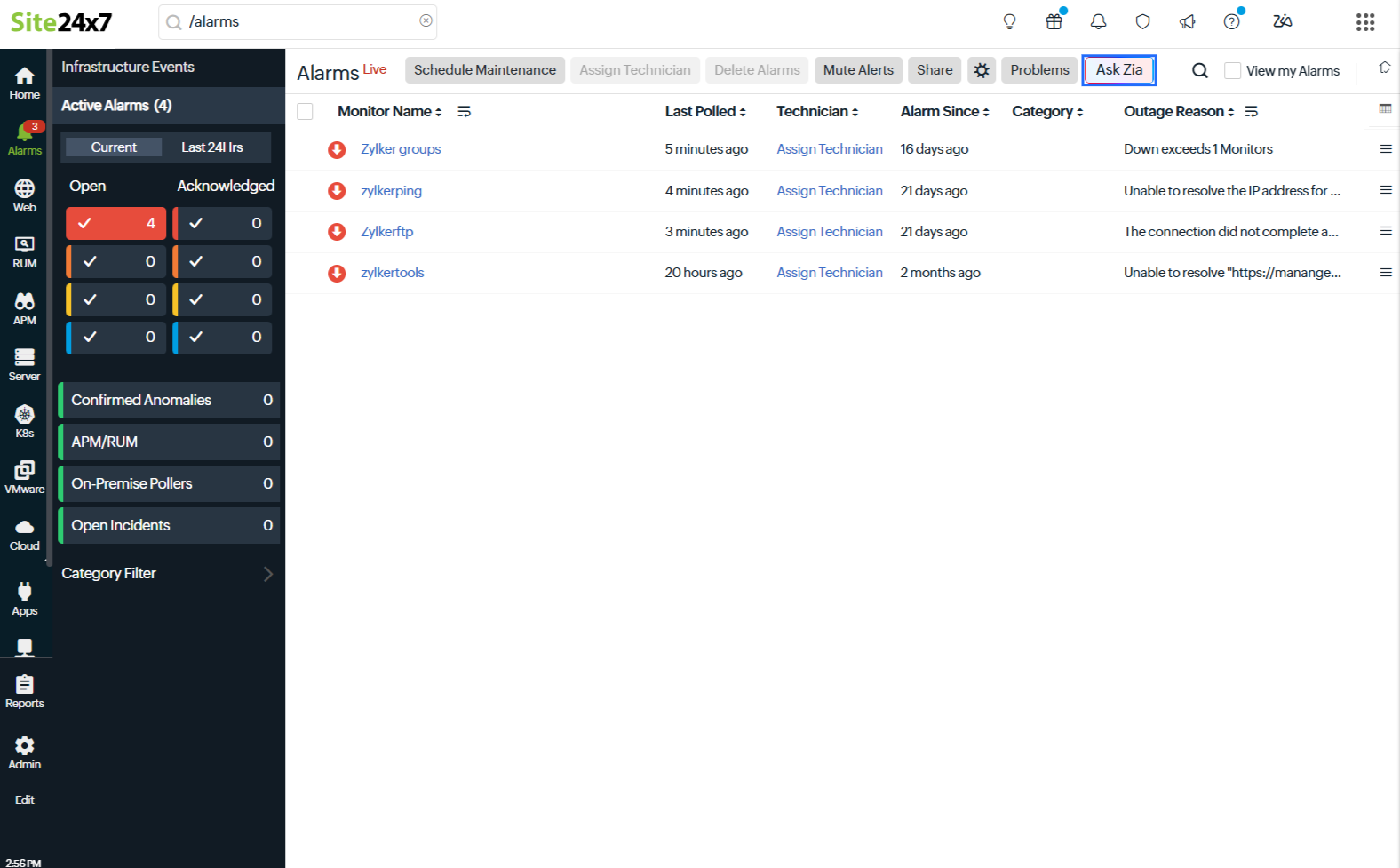
Using Ask Zia, you can analyze alarm data on the Alarms page to quickly identify issues, patterns, and insights.
To chat with Zia on the Alarms page:
- Log in to Site24x7.
- From the left menu, navigate to Alarms > Ask Zia.
In the Ask Zia pop-up, enter your prompt. Zia will analyze the alarms based on the current view and return summarized insights.
Sample prompts:
- Show me the monitors with the highest number of alarms.
- Which alarm categories occurred most in the last 24 hours?
- Identify patterns among critical alarms.
- List unacknowledged alarms by severity.
Generate report insights
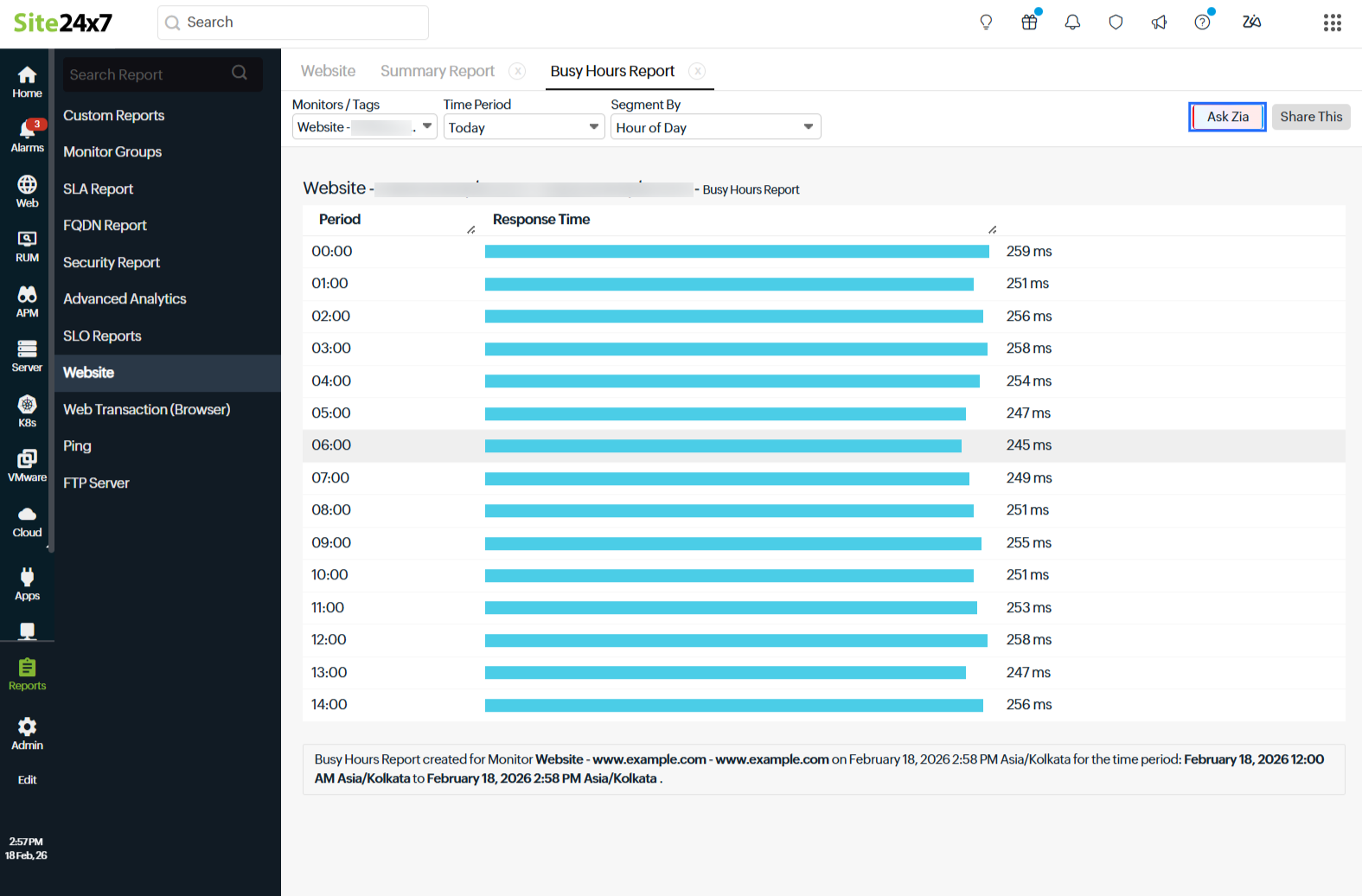
Using Ask Zia, you can extract insights from various reports on the Reports page without building complex filters manually.
To chat with Zia on the Reports page:
- Log in to Site24x7.
- From the left menu, navigate to Reports > Select any desired report > Ask Zia .
In the Ask Zia window, enter your prompt about the current report’s data. Zia will return insights relevant to that report.
Sample prompts:
- Generate a summary of downtime across all monitors for the last week.
- What are the busiest hours for response time in this report?
- Show availability trends for monitor group
this month. - Provide a performance comparison of two specific monitors.
Investigate outages
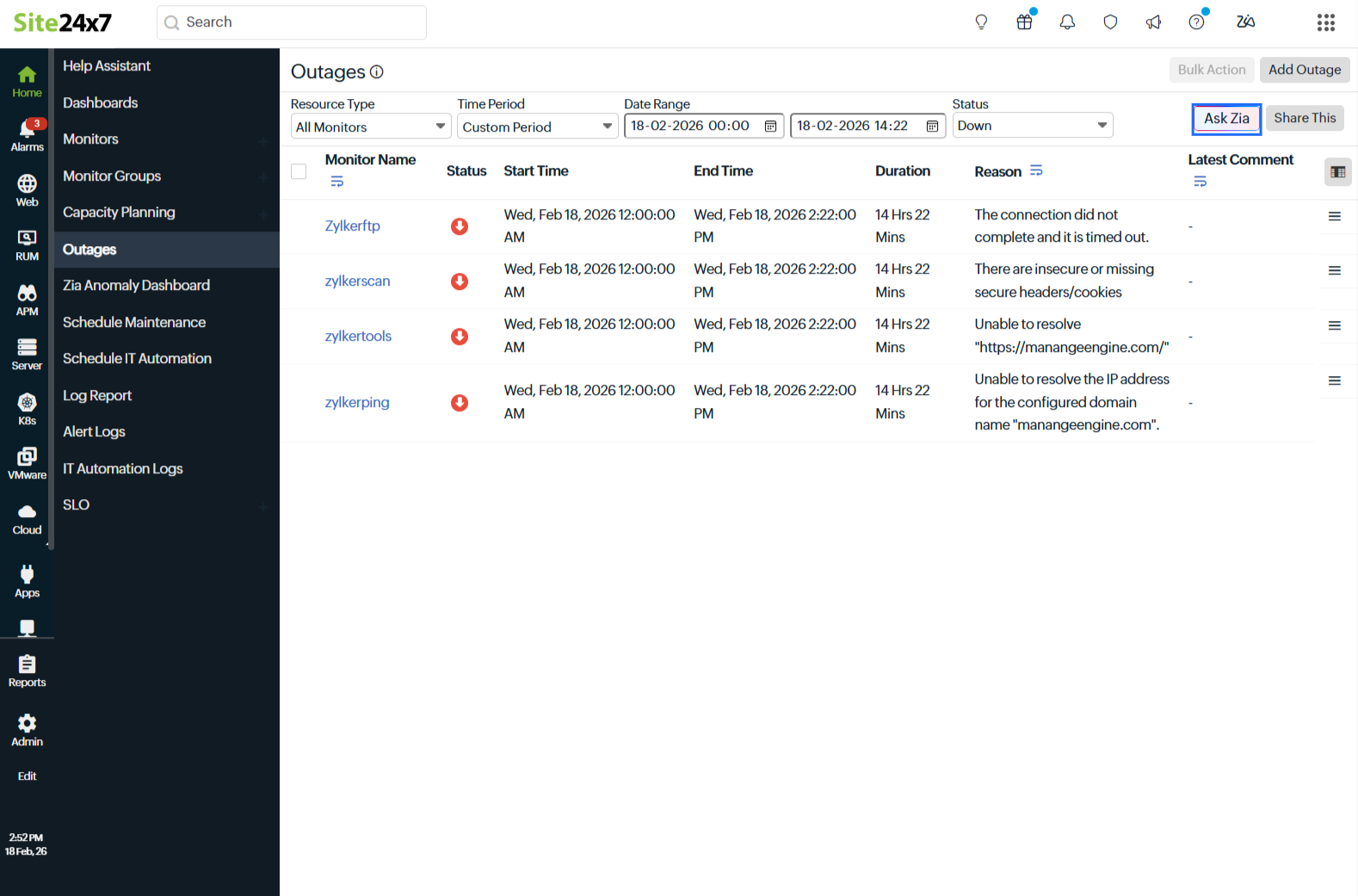
Using Ask Zia, you can analyze outage data on the Outages page to surface key outage trends, longest downtimes, and primary causes.
To chat with Zia on the Outage page:
- Log in to Site24x7.
- From the left menu, navigate to Home > Outages > Ask Zia .
Enter your prompt about outages and Zia will analyze the current outage dataset and return relevant insights.
Sample prompts:
- Show the monitors with the longest outage duration in the selected period.
- What are the primary causes of outages this week?
- Give a summary of outages by reason
.
Scope of Ask Zia
Ask Zia is available across multiple feature pages in Site24x7, enabling you to quickly retrieve monitor insights without navigating through different tabs.
- You can tag a monitor directly in your query to check its status. For example, for a prompt: Is the @monitor-name available? If not, how long has it been unavailable?, Zia instantly provides the status of the tagged monitor. If the monitor experienced downtime or unavailability, Zia also reports the duration of the outage along with relevant time details.
- You can also retrieve outage history for a specific monitor. For example, for a prompt: Show me the recent outages for @monitor-name in the last 7 days, Zia lists the outages within the specified period, including outage start time, end time, total duration, and reason for downtime (if available).
Understanding what Ask Zia can do
- For better visualization of results, you can request a response from Zia in the form of graphs or charts.
- You can ask Zia to compare two or more metrics like downtime or outages.
- Zia can only retrieve data for existing monitors within Site24x7. Incorrect monitor names or external data cannot be processed.
- Zia provides insights only for the current page and does not fetch data from other pages.
- Based on the selected model, the corresponding LLM will provide the search results.
- To clear the chat history in Ask Zia, click the delete icon
 inn the top-right corner of the chat window.