
Adding an Aruba EdgeConnect SD-WAN Monitor
Add an Aruba EdgeConnect SD-WAN monitor in Site24x7 to start collecting performance and availability metrics from your SD-WAN environment.
Prerequisites
Before adding the monitor, ensure the following:
- A valid Aruba EdgeConnect Orchestrator URL
- Required user credentials with access to the device and performance data
- Network connectivity between Site24x7 and the HPE Aruba Networking EdgeConnect Cloud Orchestrator
- The necessary permissions to fetch device details and metrics
Steps to add a monitor
- Log in to your Site24x7 account.
- Navigate to SDN > Aruba EdgeConnect.
- Click the plus icon + beside EdgeConnect SD-WAN.
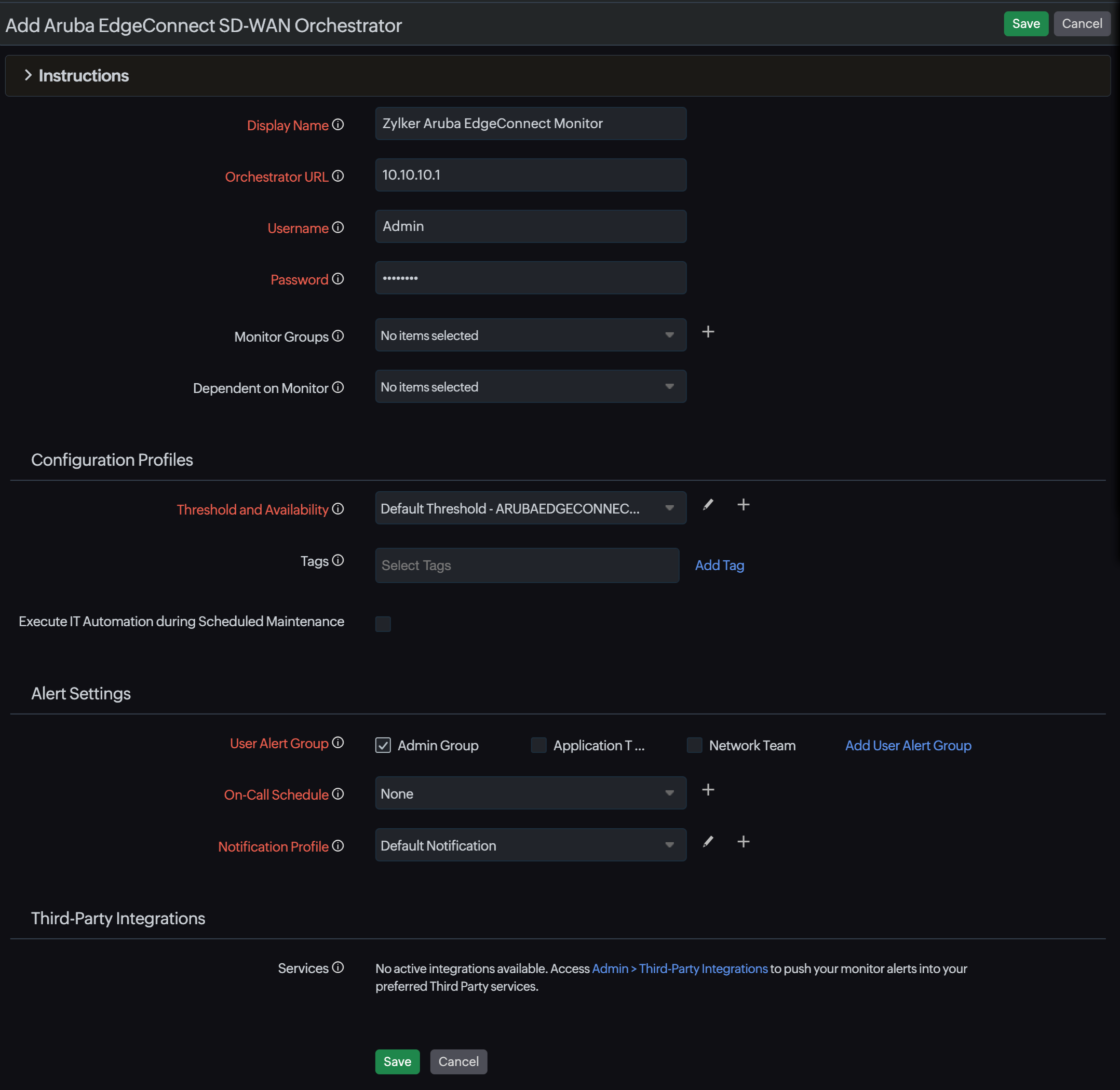
- Provide the required details:
- Display Name: A unique name to identify the monitor.
- Orchestrator URL: The URL of the Aruba EdgeConnect Orchestrator.
- Username: The username for authentication.
- Password: The password for authentication.
- Monitor Groups (optional): Assign the monitor to an existing monitor group or add a new one by clicking the plus icon + beside the field.
- Dependent on Monitor (optional): Set a dependency to suppress alert noise.
- Provide details for the Configuration Profiles, Alert Settings, and Third-Party Integrations sections.
- Click Save.
Verifying the monitor
After adding the monitor, you can verify its status:
- Check the Summary tab for availability and health status.
- View device-level data under the Edges tab.
- Use the Topology tab to understand network relationships.
- Monitor events in the Events Timeline.
Best practices
Here are some best practices that are recommended:
- Use a descriptive display name for easier identification.
- Ensure credentials have read access to all required resources.
- Regularly review alerts and thresholds for proactive monitoring.
Troubleshooting common issues
Given below are some common issues that come up while adding a monitor and the steps to troubleshoot them.
- Unable to add monitor: Verify the Orchestrator URL and credentials.
- No devices discovered: Check the API access and permissions.
- No data displayed: Ensure that network connectivity is available.
- Authentication failure: Check the username and password.