
Manage Zoho Cliq subscribers in StatusIQ
Integrating Zoho Cliq with StatusIQ allows your organization users and internal teams to receive real-time status updates directly in their Zoho Cliq channels. By subscribing to Zoho Cliq Channels via StatusIQ, subscribers receive instant alerts about incidents, maintenance events, and status changes without switching apps, helping improve visibility, response times, and incident communication.
In addition, StatusIQ Admins, Super Admins, and Spokespersons can update incidents directly from the StatusIQ Notification Bot.
Use cases
Here are some real-time scenarios of how Zoho Cliq and StatusIQ integration helps:
- Never miss a critical status update: Receive all status updates in a dedicated chat channel in Zoho Cliq for faster response tracking.
- Help customer to resolve issues faster: Support teams can receive real-time alerts in Zoho Cliq to assist customers proactively.
- Keep your on-call engineers informed: On-call engineers can subscribe to status updates in Zoho Cliq to stay notified of outages or incidents
- Simplify incident coordination: During an ongoing incident, authorized users can publish status updates from the StatusIQ Notification Bot without switching to the StatusIQ console.
Benefits
Here are few real-time benefits of StatusIQ and Zoho Cliq integration:
- You can receive incident and maintenance notifications in Zoho Cliq channels as messages, ensuring your team stays updated instantly through chat and mobile notifications.
- Bring together all status alerts within your team collaboration workspace for faster awareness.
Prerequisites
To use Zoho Cliq subscriptions, you must have a Zoho Cliq org account and install the StatusIQ extension from the Zoho Cliq Marketplace or from the StatusIQ client.
To install the Status IQ extension, you should have:
- Organizational Admin role in Zoho Cliq
- Admin or Super Admin role in StatusIQ
Configuring alert preferences
To configure alert preferences for subscribers in a Zoho Cliq channel, follow these steps:
- Log in to StatusIQ.
- Navigate to Subscribers > Zoho Cliq Subscribers.
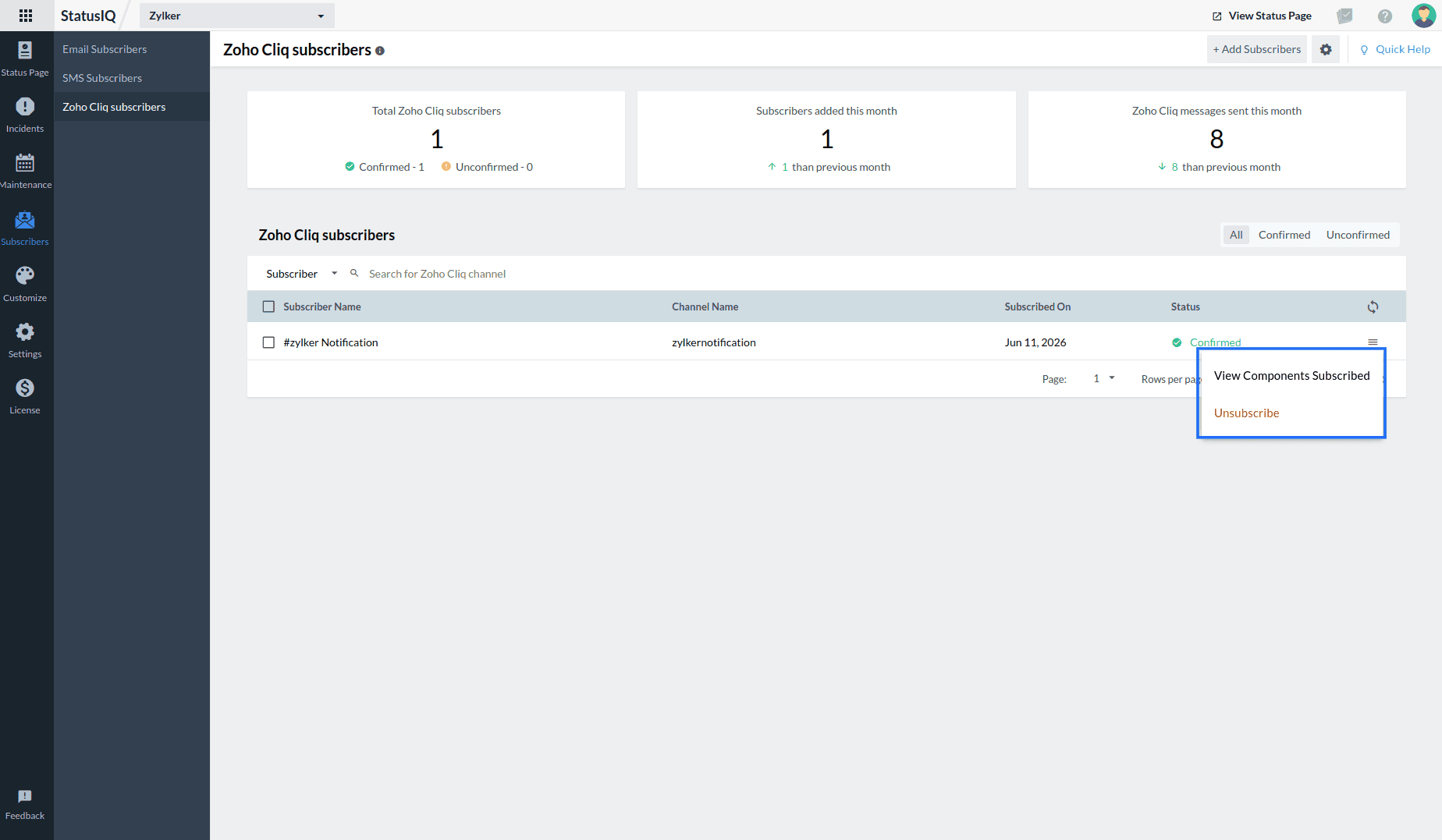
- Select the subscribers for whom you want to change the configuration. Click the hamburger icon
 near the subscriber details.
 - From the available options, select the desired one:
- View Components Subscribed: Enables you to see all the associated components for which you have a Zoho Cliq subscription.
- Unsubscribe: Enables you to unsubscribe Zoho Cliq for any selected components.
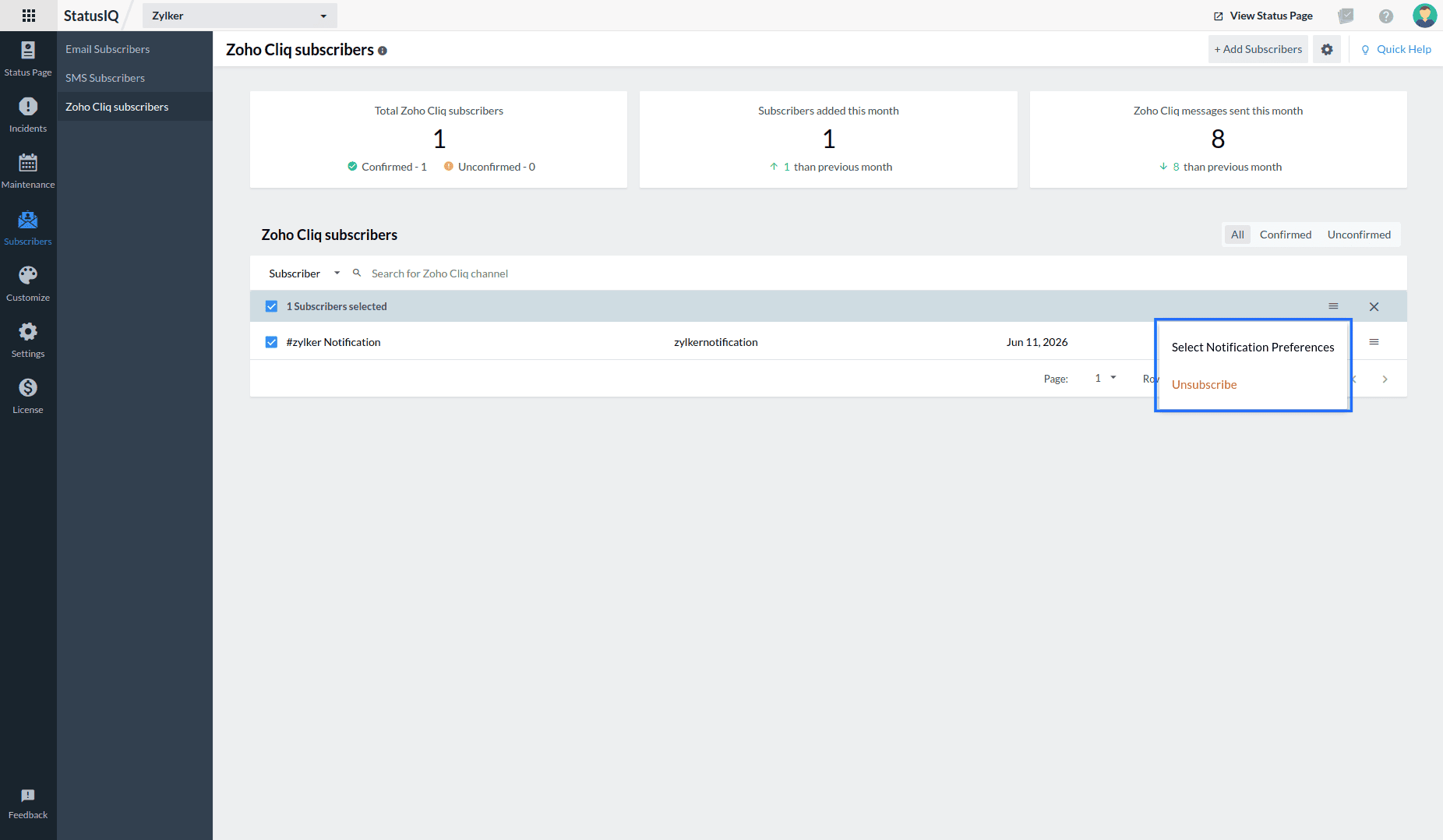
To perform bulk actions, select the check box near the desired Subscriber Name. Once the subscribers are selected, a blue banner appears with the number of subscribers that are selected. Click the hamburger icon from the blue banner that appears and perform the following actions:
- Select Notification Preference: You can choose to receive notifications for Incidents, Maintenance, or both.
- Unsubscribe: You can unsubscribe Zoho Cliq notifications for all components.
Related articles
How to add subscribers for Zoho Cliq
-
On this page
- Use cases
- Benefits
- Prerequisites
- Configuring alert preferences