
SMS Subscribers
StatusIQ allow your users to subscribe to SMS alerts. You can manually add subscribers or bulk import new subscribers via CSV files. To add new subscribers, log in to the StatusIQ, and navigate to Subscribers > Add Subscribers. SMS subscribers can customize their Notification Preferences by selecting to receive notifications for Incidents, Maintenance, or both.
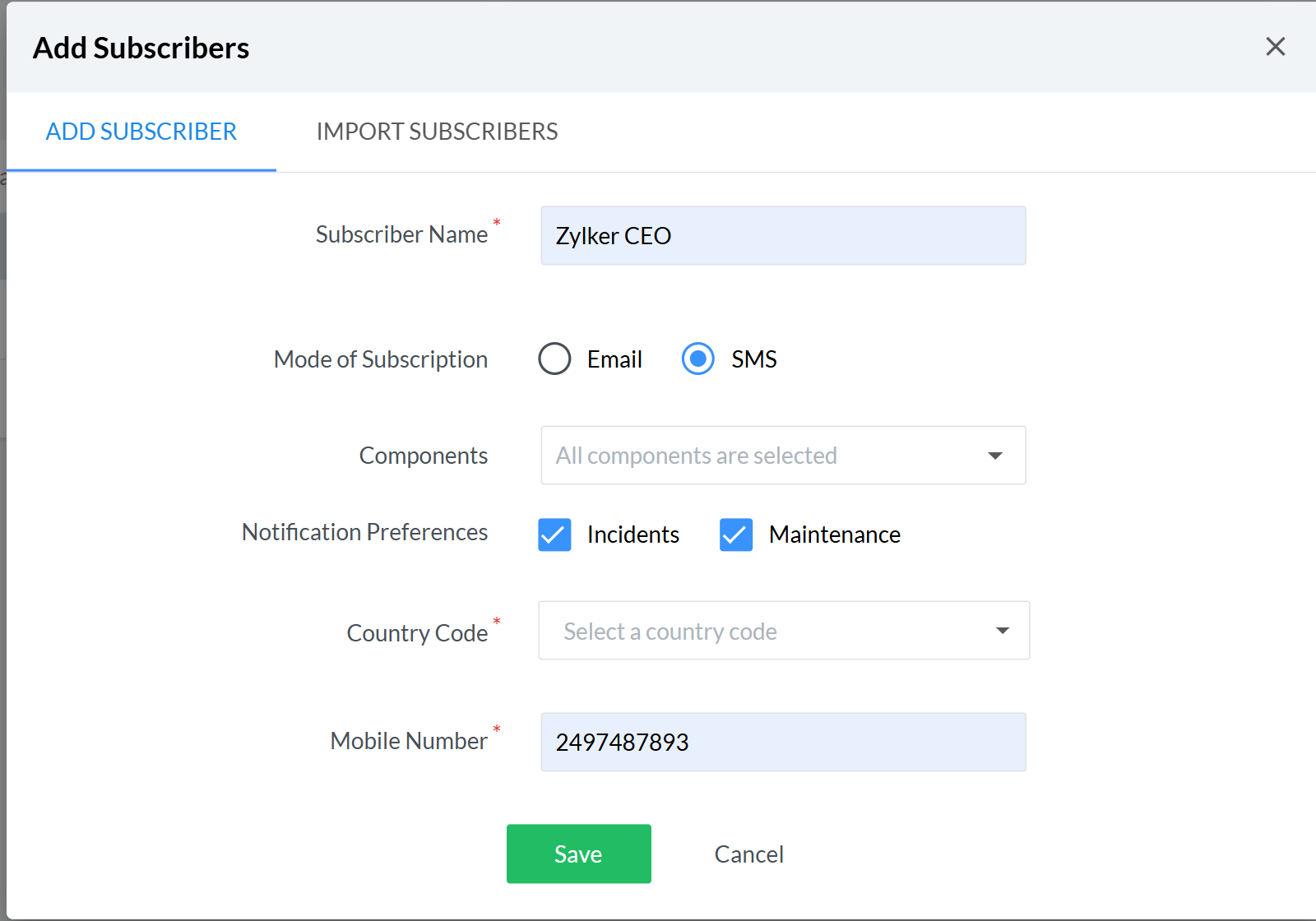
In the Add Subscribers form, fill in the following details:
- Subscriber Name: Provide the username.
- Mode of Subscription: Select the mode of subscription as SMS.
- Components: Select the components you desire to receive updates for. If no component is selected, you will receive updates for all components by default.
- Notification Preferences: Select Incidents or Maintenance to receive the associated updates for the selected components.
- Country Code: Provide the country code of your subscribed contact number.
- Mobile Number: Provide the mobile number of your subscribed contact number to receive SMS notifications.
Export subscribers
Using this option you can download the subscriber list as CSV files and can upload that in another status page using Import Subscribers option.
To export subscribers, log in to your StatusIQ account, choose the status page of your preference. In the new page that opens click Subscribers tab in the left nav bar, then navigate to SMS Subscribers > Download CSV.
Auto-buy SMS add ons
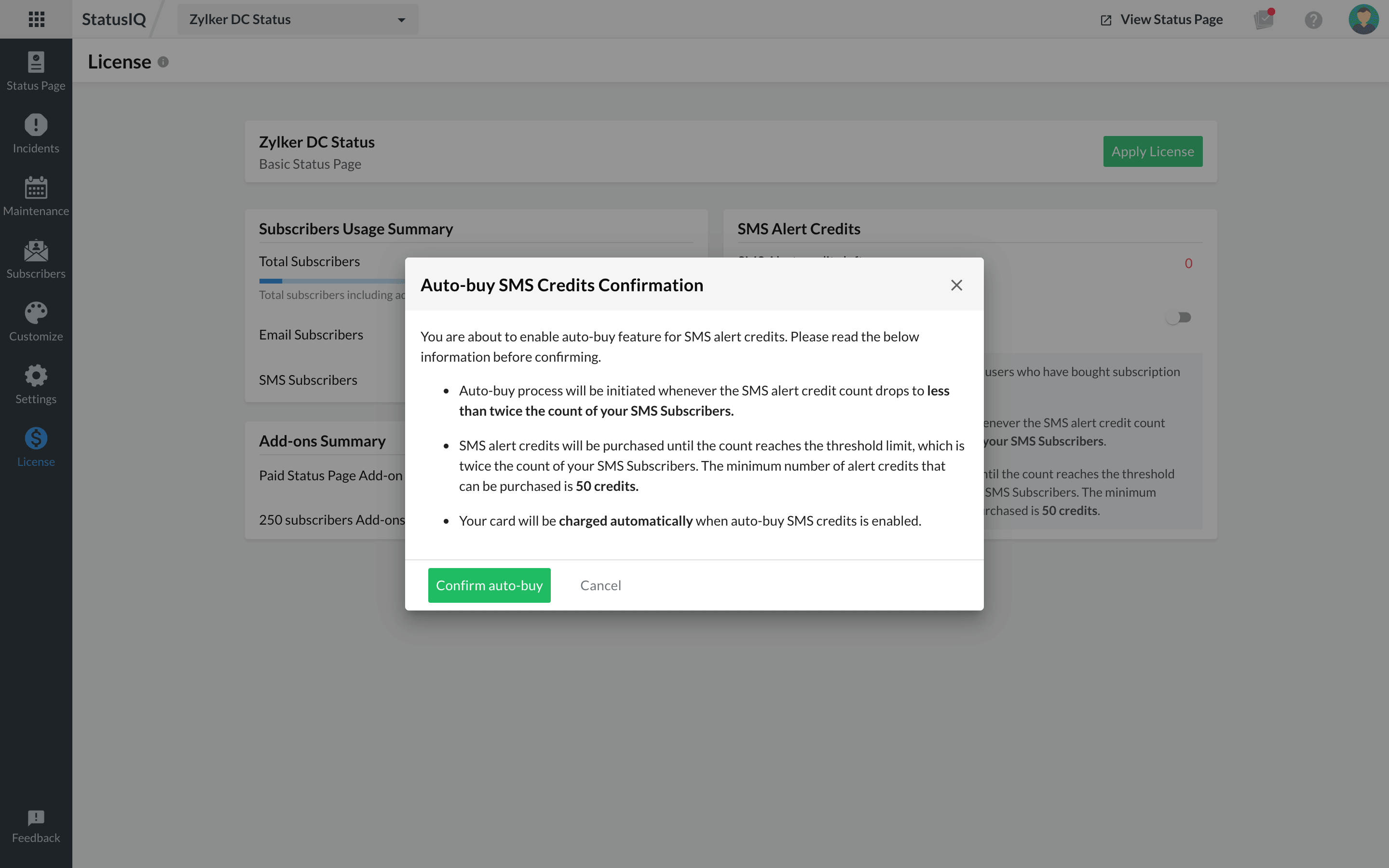
For SMS subscribers there is an option to enable the Auto-buy option. Auto-buy processes will be initiated whenever SMS alert credits reach less than twice the count of your SMS subscribers. For instance if you have 500 SMS subscribers then you will be alerted when the SMS alert credit drops below 1,000.
-
On this page
- Export subscribers
- Auto-buy SMS add ons