
Integrate with Zoho Cliq
You can integrate StatusIQ with Zoho Cliq to receive instant updates. Zoho Cliq is a communication platform for team messaging and operational updates. Integrate StatusIQ with Zoho Cliq to ensure that your teams receive real-time status updates, incident alerts, and downtime notifications directly into your Zoho Cliq channels.
This integration allows you to receive notifications in you Zoho Cliq mobile app automatically.
Configuring Zoho Cliq integration in StatusIQ
Follow these steps to initiate StatusIQ-Zoho Cliq integration:
- Log in to your StatusIQ account.
- In the left-hand navigation menu, click Subscribers.
- Under the Subscribers tab, select Zoho Cliq from the top sub-menu.
- If you are new to Zoho Cliq organization account,
- In the pop-up that appears, review the policy and click the checkbox, and click Create Zoho Cliq organization.
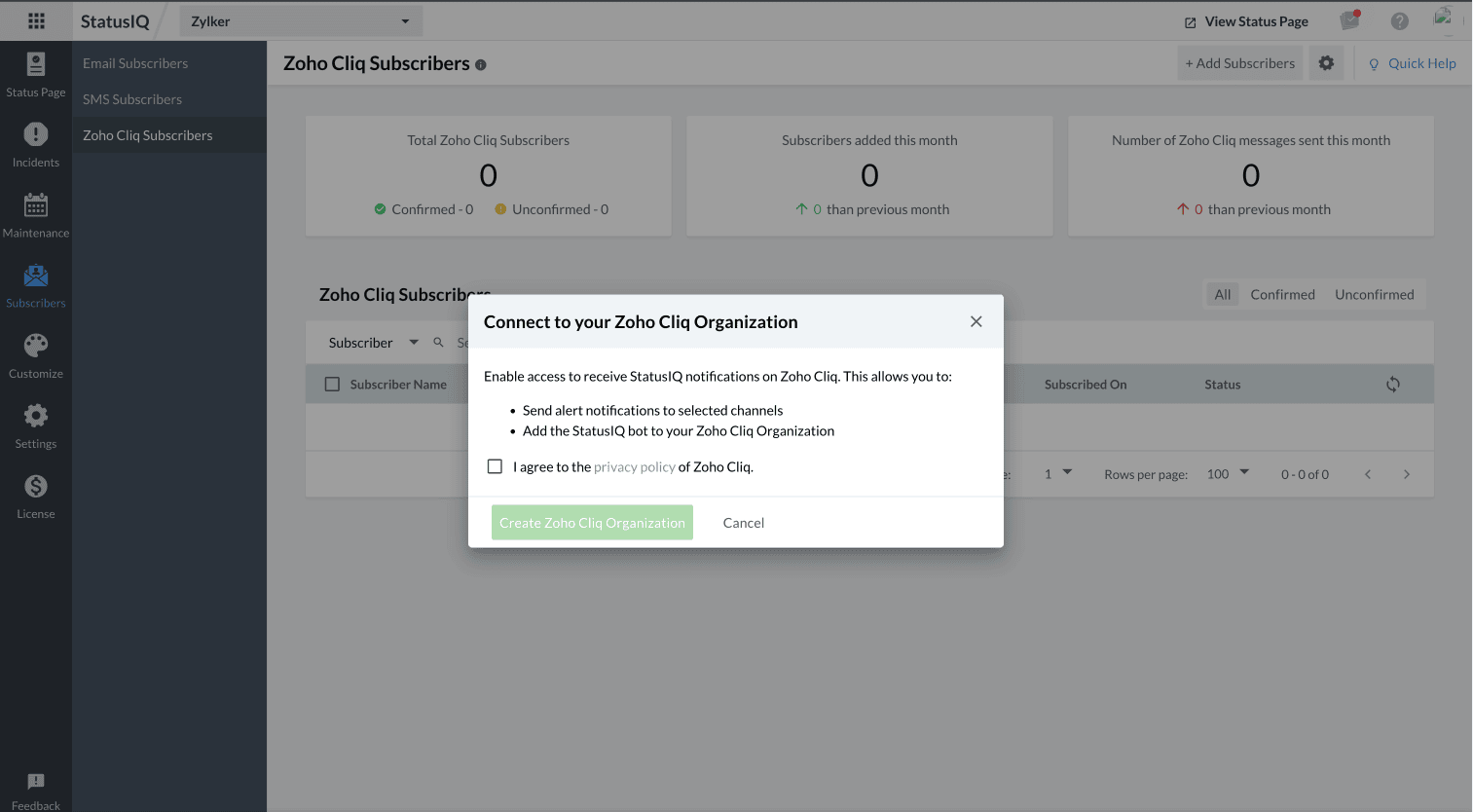
- In the pop-up that appears, review the policy and click the checkbox, and click Create Zoho Cliq organization.
- If you already have a Zoho Cliq Organization account, but have not installed the StatusIQ extension,
- In the pop-up that appears, review the policy and click the checkbox, and click Install Zoho Cliq-StatusIQ Extension.
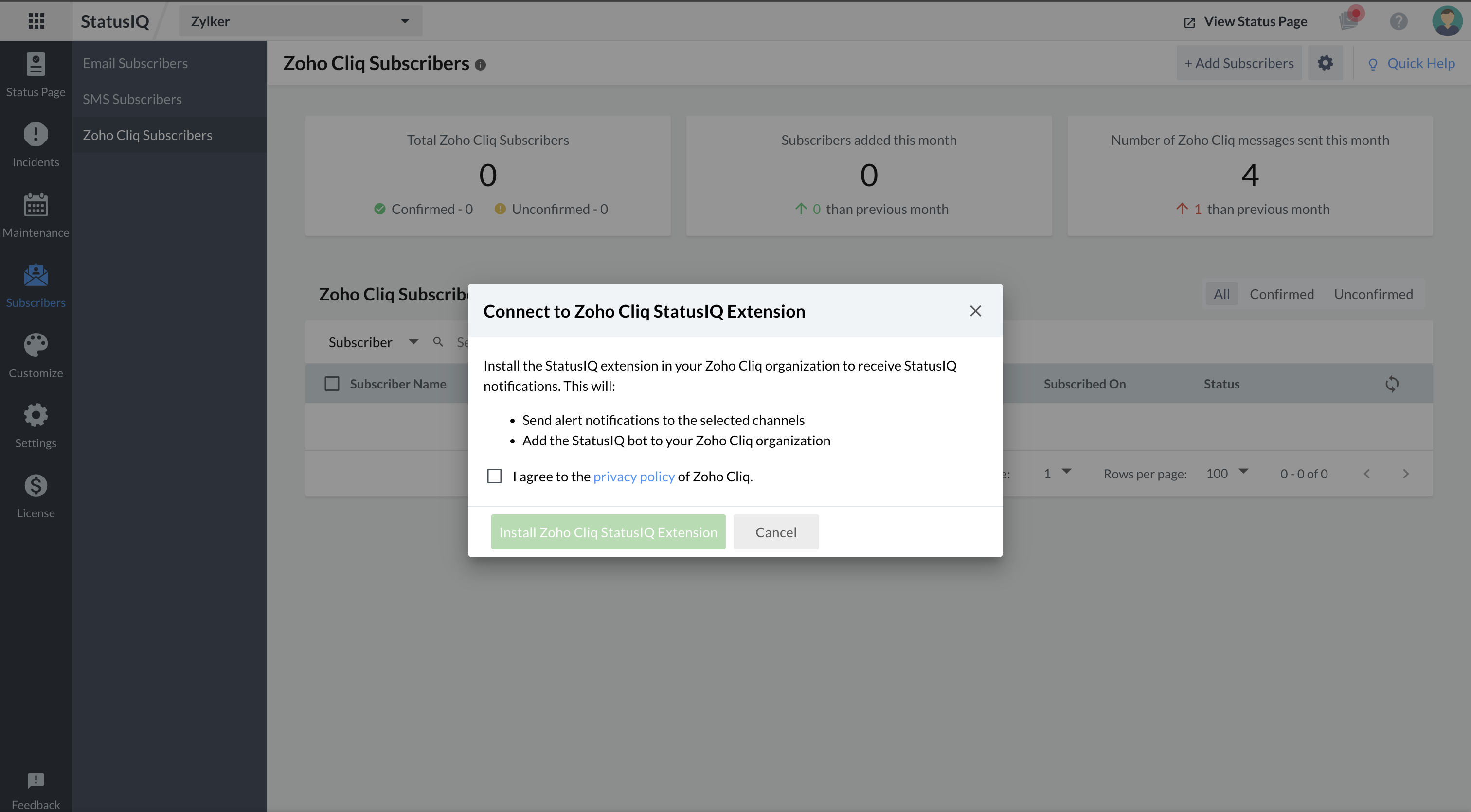
- In the pop-up that appears, review the policy and click the checkbox, and click Install Zoho Cliq-StatusIQ Extension.
- If you already have Zoho Cliq Organization account along with the StatusIQ extension, you can directly add Zoho Cliq subscribers.
- If you are new to Zoho Cliq organization account,
When you create a new Zoho Cliq organization from the StatusIQ client, a default channel is automatically set up the first time you open Zoho Cliq. If you install only the StatusIQ extension, no channel is created. You will be subscribed to the StatusIQ Notify bot for notifications.
You cannot perform these actions directly from Zoho Cliq mobile app.
Add subscribers
To add subscribers to the Zoho Cliq channel, follow the steps below:
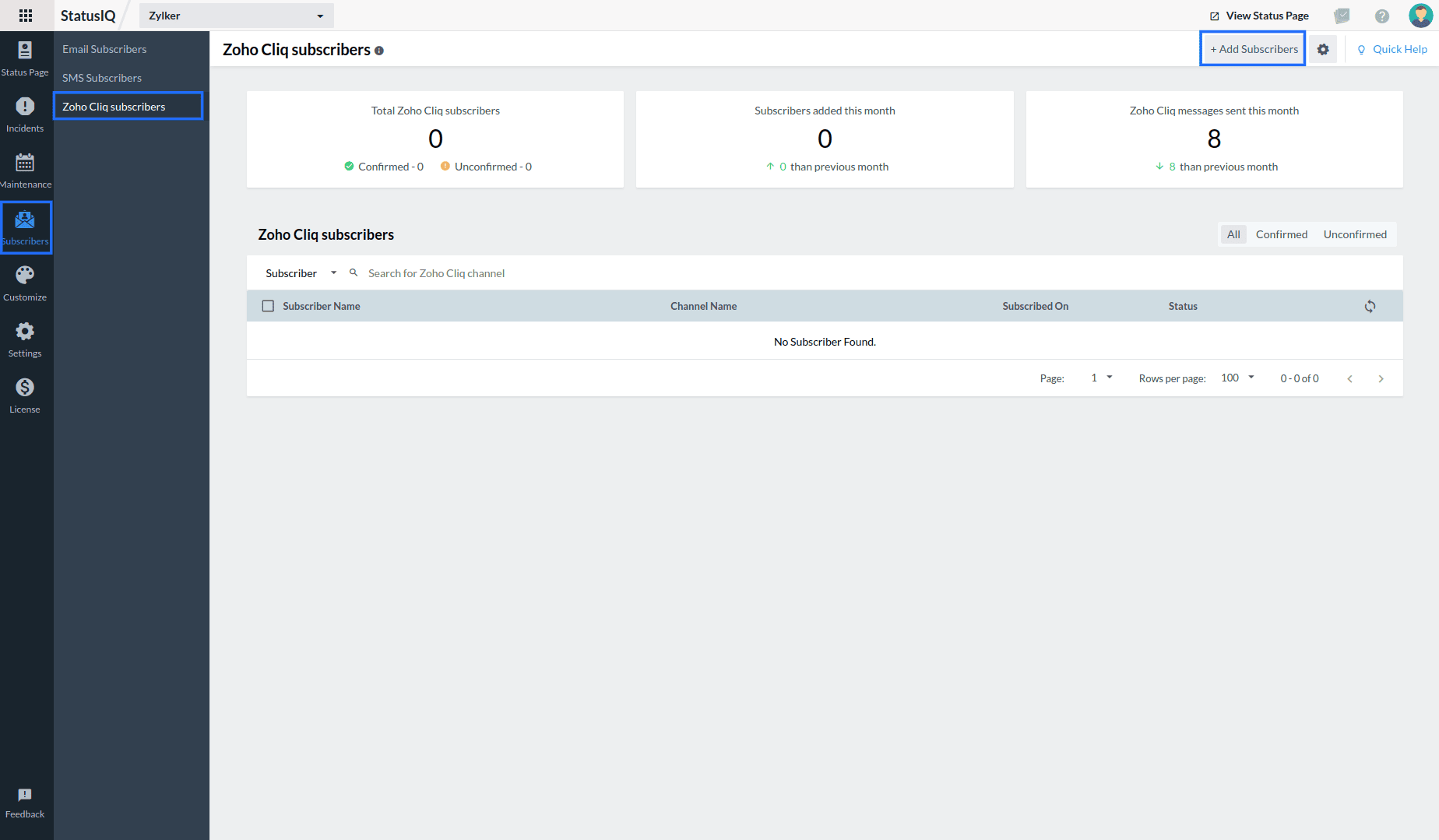
- Go to Subscribers > Zoho Cliq Subscribers > Add Subscribers.
- In the Add Subscribers form, fill in the following details:
- Channel Name: Provide a valid channel name.
- Mode of Subscription: Select the mode of subscription as Zoho Cliq.
- Components: Select the components for which the incident and maintenance notifications will be shared in this Zoho Cliq Channel. Check the Role of Administrator section for more information.
- Notification Preferences (Incidents and/or Maintenance): Select Incidents or Maintenance to determine which notifications users will receive.
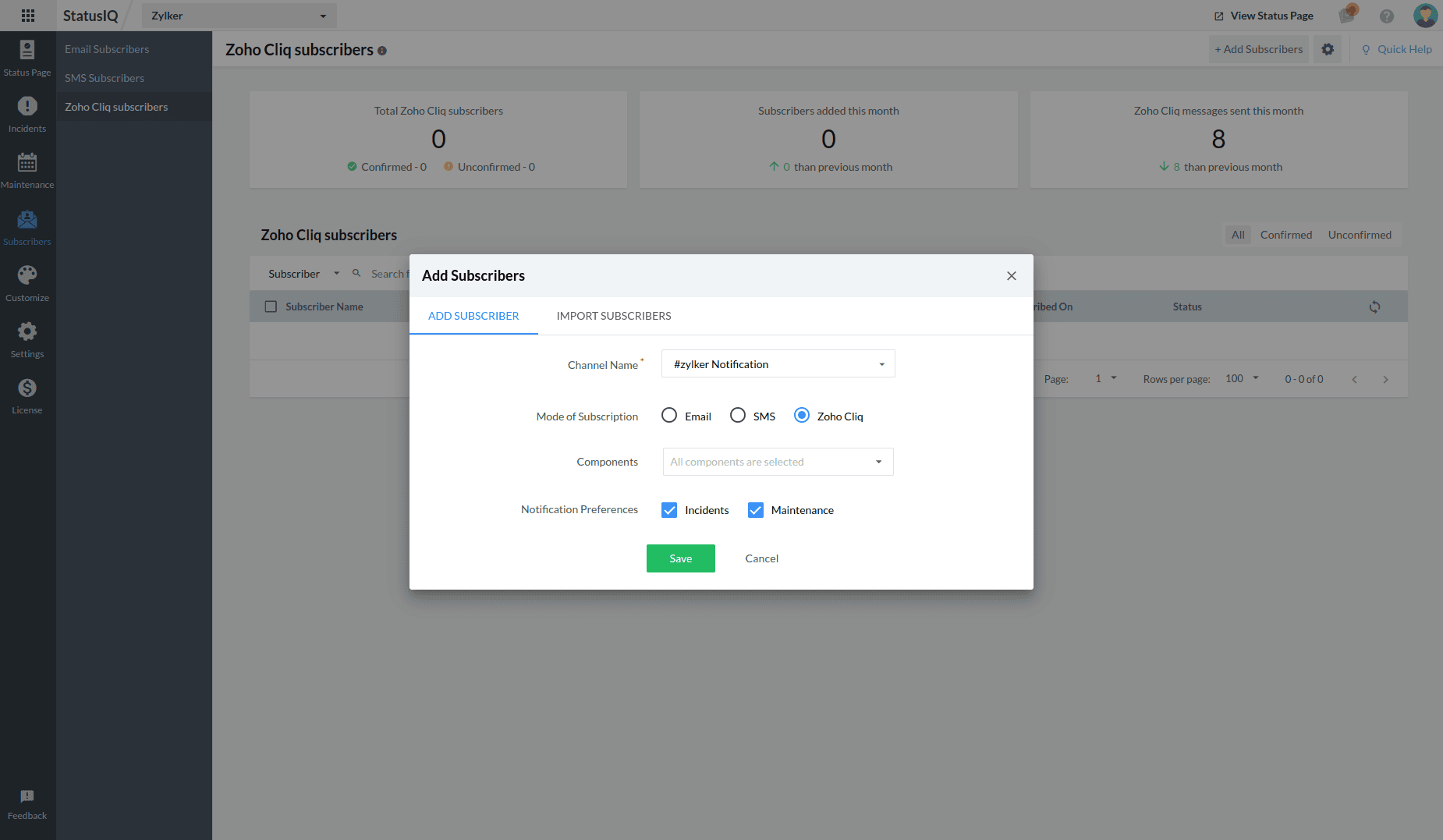
- Click Save.
Role of Administrators
Once the channel is created, StatusIQ Admins, Super Admins, and Spokespersons can post incident updates directly from Zoho Cliq using the StatusIQ Notification Bot. This allows authorized users to communicate incident progress and resolution updates without switching to the StatusIQ console.
Enable Alert Modes for Admins, Super Admins, and Spokespersons to receive notifications through the StatusIQ Notification Bot.
From the notification, users can click the below options:
- View Details: To view the status page for incident and maintenance details.
- Post Update: To post an incident update to the status page directly. Follow the steps below to post an update:
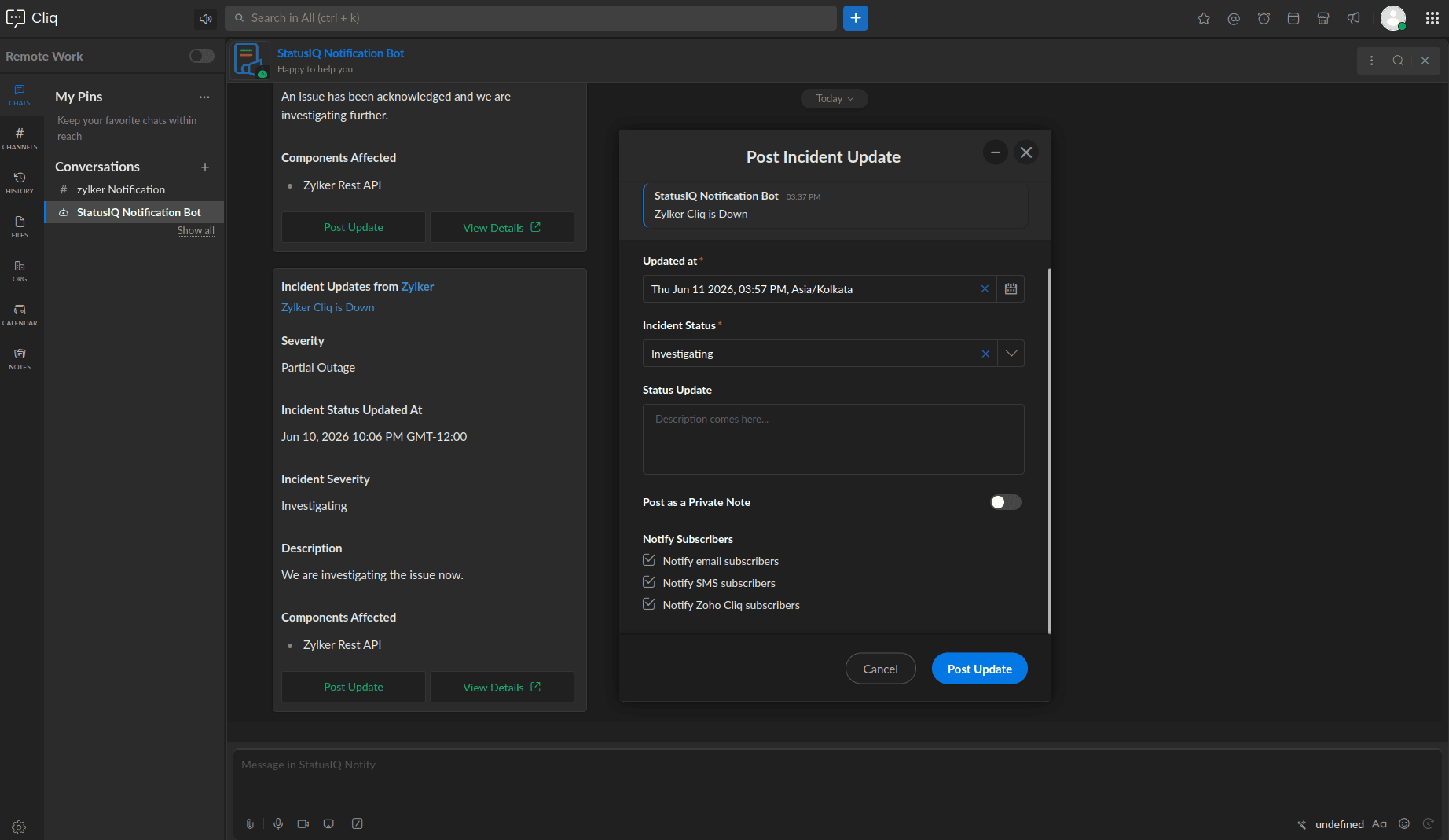
- In the Post Incident Update form, provide the details to be updated and click Post Update.
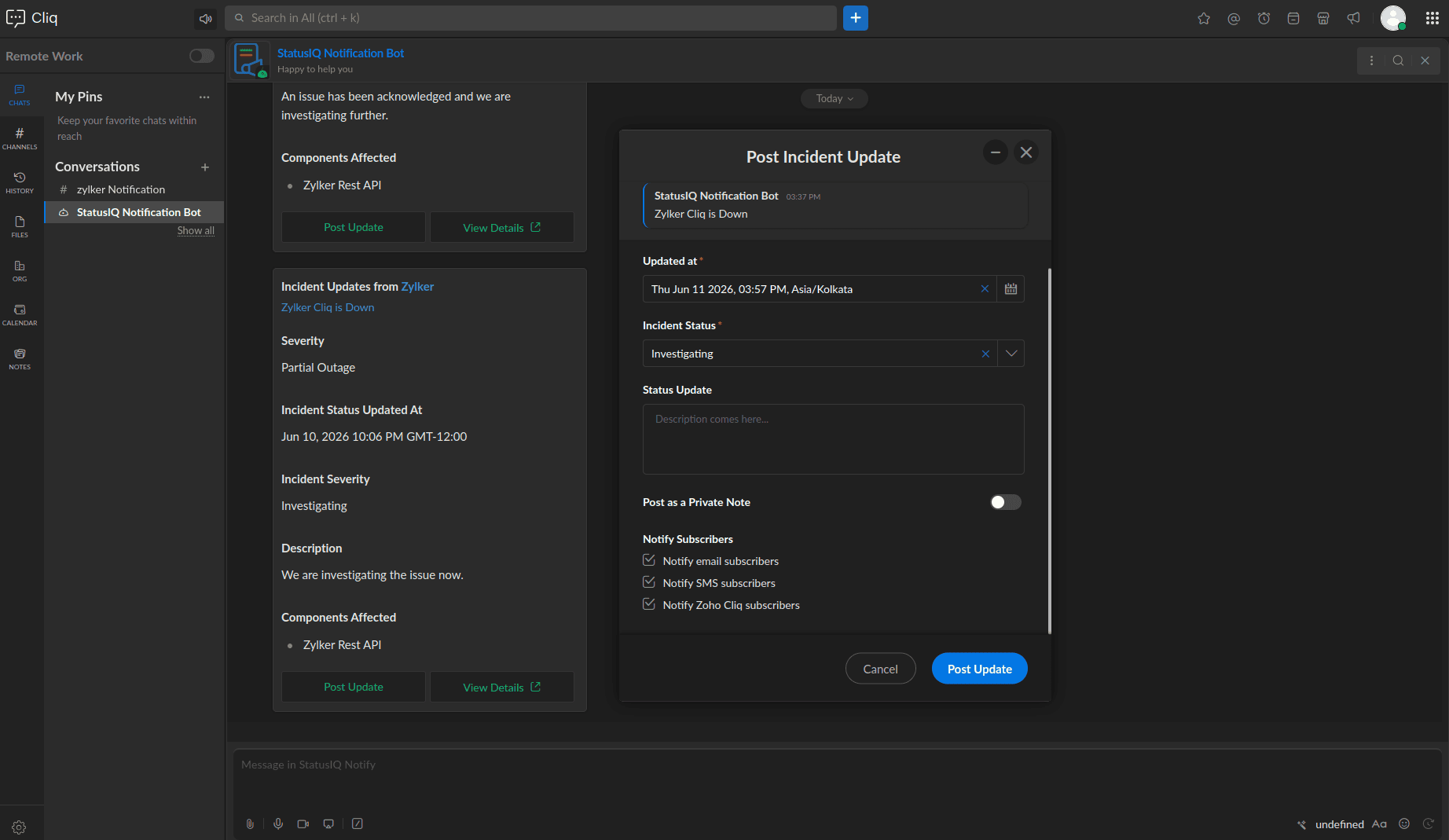
- In the Post Incident Update form, provide the details to be updated and click Post Update.
The update will be published to the associated status page and made visible to subscribers.
MSP and Business Unit accounts
For MSP and Business Unit accounts, only Admins, and Super Admins can create and configure a Zoho Cliq organization for receiving StatusIQ notifications and posting incident updates.
Related articles
How to manage Zoho Cliq Subscribers